

Selecting a library
When you create a new project, you choose which library it will use. The library determines the set of blocks you can add and the overall design style. If your team has just one library, Denada uses it automatically; if there are several (for example, one for newsletters and one for promotional emails), a picker appears so you can choose the one that matches what you’re creating.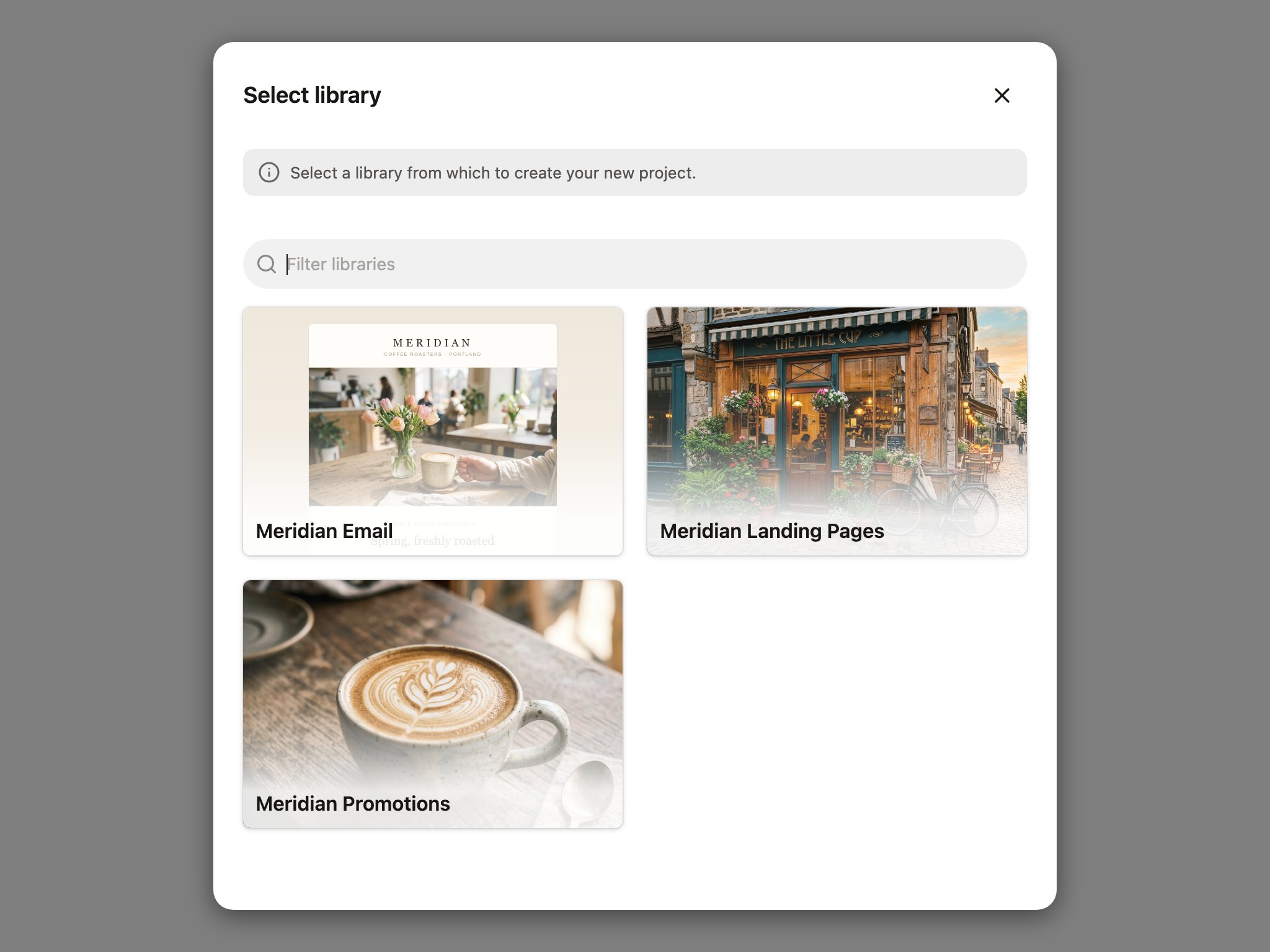
The block picker
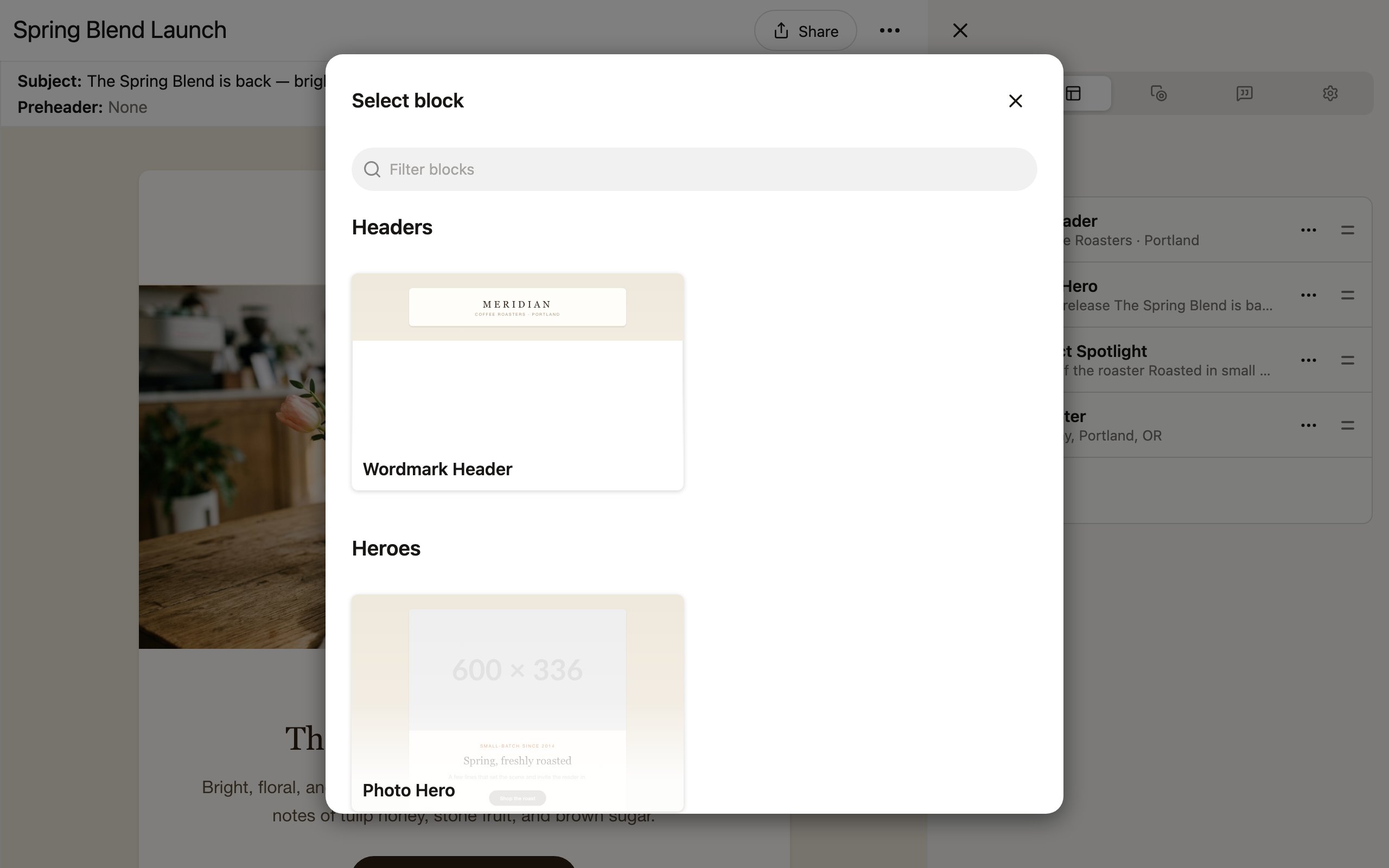
Once your project has a library assigned, you add content by inserting blocks from that library.- Use the add-block control between blocks in the preview — or the Add first block… button in an empty project — to open the block picker.
- The picker shows all published blocks in the project’s library.
- Browse the list or search by name.
- Click a block to add it to your project.
How parameters get filled in
Every block comes with a set of parameters defined by the library — things like headline text, images, button labels, and colors. When you add a block to a project, these parameters start with default values (or empty, depending on the library design). You fill in parameters in two ways:- In the editor — select a block and edit its parameters in the sidebar.
- Through chat — describe what you want and Denada fills in the parameters for you.
Projects keep their own copy
When you create a project, it takes a snapshot of the library at that moment. If the library is updated later (new blocks, design changes, bug fixes), your existing projects are not affected until you choose to update. This means library work never silently changes a campaign that’s already approved.Library versions and updates
The Options tab of the project editor shows which library and version the project is using. When a newer version of the library is available, the library shows an Update available badge. Click the library to see your options:- Update — pull in the latest library version.
- Change version — browse all available library versions (named releases and automatic checkpoints) and pick the one you want. The current version is labeled so you always know where you are.
- Change library — switch to a different library entirely. Your blocks are kept, but may not match up with the new library.
- View library — open the library in the library editor to see its blocks and structure (requires the Libraries permission).
A library can mark one of its versions as the current version. Projects that adopt the library use that version rather than the latest draft, so the library team can keep working without affecting new projects.
How it all fits together
- Library defines the available blocks, their structure, and their parameters.
- Project selects a library and assembles blocks in a specific order with filled-in parameter values.
- Variations (optional) let you create multiple versions of the same project with different parameter values.
If you need blocks that do not exist in your current library, ask a teammate with the Libraries permission to add them in the library editor, or reach out to the Denada team to extend the library for you.