

Giving Denada context
Denada works best when it understands what you’re trying to do. You can provide context in several ways, and combine them freely in a single message:- Type a prompt describing what you need.
- Use voice input — when the chat box is empty, a microphone button appears; speak your request and Denada transcribes it into the box.
- Attach files with the attachment button — images, text files, PDFs, or documents like creative briefs. You can also drag and drop files onto the chat, or paste an image directly.
- Paste a URL to pull in content from a web page (see below).
Creating content through conversation
- Describe what you want to create (e.g., “I need a promotional email for our spring sale with a hero image and a CTA button”).
- Denada will respond with clarifying questions or an initial draft.
- Continue the conversation to refine the content:
- Request changes: “Make it more casual in tone”
- Ask for alternatives: “Can you give me another version?”
- Add specifics: “Include a 20% discount code”
- As Denada works, the draft appears in the preview area on the left side of the screen. Switch to the Edit tab in the right sidebar to make manual adjustments at any time.
Targeting a specific block
Once your project has a layout, you can click on any block in the preview to focus Denada on just that section. A “Focused on [block name]” badge appears in the chat input to confirm the target. If you don’t click a block, Denada considers the entire project when responding. This is useful when you want to change a headline, swap an image, or rework the copy in one section without affecting the rest of the project.Reviewing proposed changes
When Denada makes a change, it shows the proposed update as a draft. You can toggle between the before and after to see exactly what changed. A banner at the top of the preview gives you two options:- Accept — applies the change to your project.
- Cancel — discards the change and keeps the original.
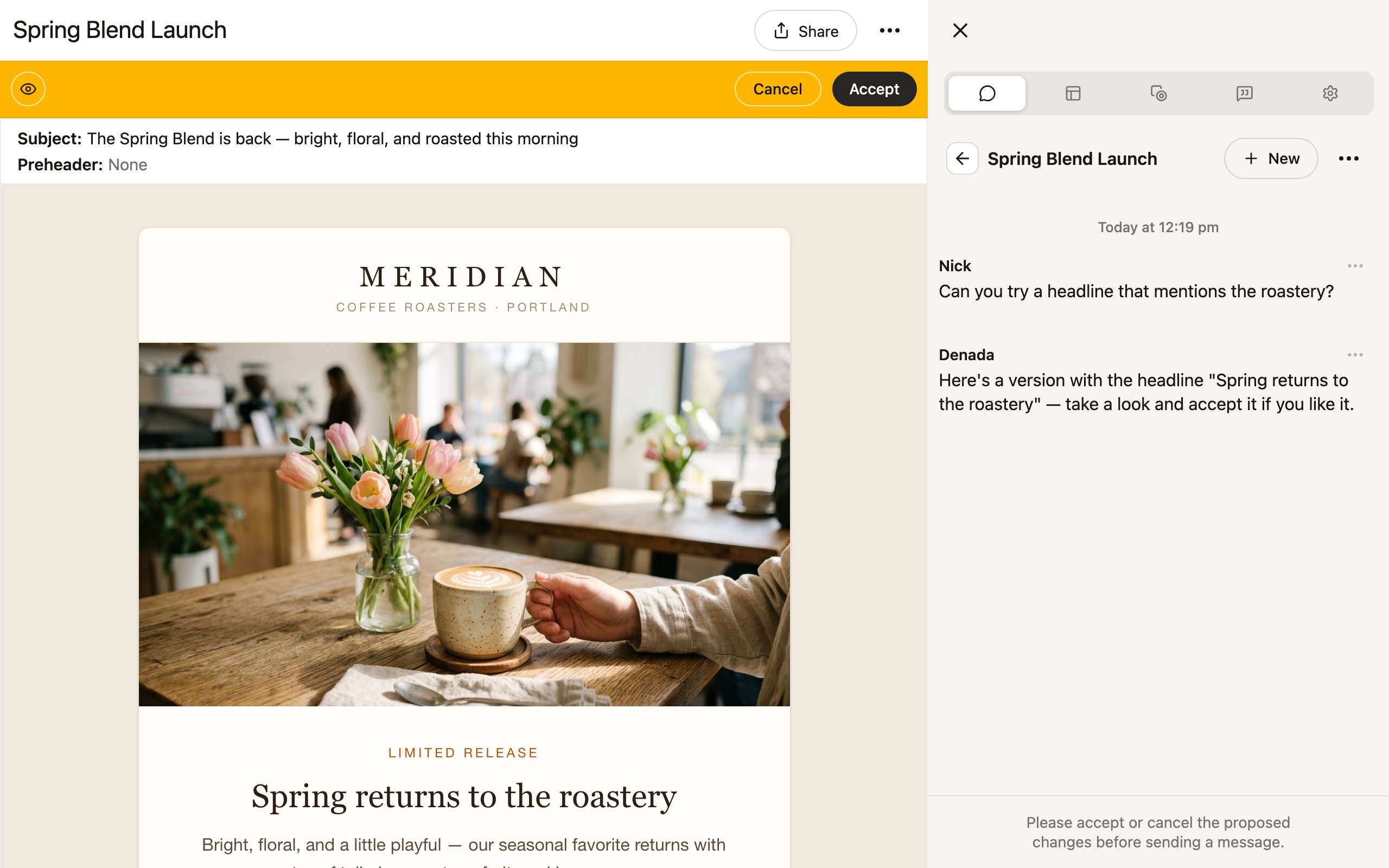
Pulling in content from URLs
Paste one or more URLs into the chat and Denada will extract content and images from each page, as long as the website allows it. This is a fast way to incorporate product details, blog content, or company information without copying and pasting anything yourself. You can guide what gets extracted and how it’s used:- Denada cannot browse between pages. It only scans the specific URLs you provide — it won’t follow links from one page to another. Paste each URL you want scanned.
- Denada prefers images from your collections by default. If you want it to use images from the extracted page instead, say so explicitly.
- Content behind login screens can’t be extracted, and extraction respects each website’s permissions, so some pages may decline to be scanned.
Finding and generating images
Denada can search your team’s image library right from the conversation — just describe the kind of image you need, and it will pick relevant options. If your team has AI image generation enabled, you can also ask Denada to generate brand-new images. Learn more about AI imagesReading your team’s docs
Denada can read documents stored in your team’s Docs section and use them as context. This is useful for checking your work against brand guidelines, legal requirements, compliance rules, or any other reference material your team has uploaded. For example, you can ask “Can you review my legal document to make sure we are compliant?” and Denada will pull up the relevant doc, read it, and check your email against it. Learn more about Docs →Conversation memory
The chat remembers your entire conversation, allowing you to:- Reference information mentioned earlier.
- Build upon previous instructions.
- Refine content through multiple iterations.
Switching between chat and the editor
Chat and the editor live side by side in the same project view. To switch from chat to manual editing:- Click the Edit tab in the right sidebar.
- You will see all blocks and parameters ready to adjust.
- Switch back to the Chat tab at any time to continue the conversation.
Best practices
Denada produces better results when it has more context to work with. Here are some ways to get the most out of chat:- Give context up front. Attach a creative brief, paste a URL, or describe your audience, goals, and tone in your first message.
- Upload reference images. If you have a design to match or a photo you want included, attach it directly.
- Be specific. “Create a two-column email announcing our spring sale to existing customers, casual tone, with a hero image and a 20% off CTA” gives much more to work with than “make me an email.”
- Iterate gradually rather than requesting major changes all at once.
- Combine inputs. You can attach a brief, paste a URL, and type additional instructions all in one message.
The chat interface is designed for ideation and initial content creation. For
detailed formatting and design adjustments, switch to the Edit tab
in the right sidebar.