

The Images section in the sidebar is where you manage all visual assets across your team. Images are organized into collections — named groups that keep things tidy as your library grows.Documentation Index
Fetch the complete documentation index at: https://help.heydenada.com/llms.txt
Use this file to discover all available pages before exploring further.
Collections
A collection is a named group of images. The sidebar lists all your collections, and clicking one filters the view to just those images. You might create collections for campaigns, product lines, seasons, or content types. When you first upload images without choosing a collection, they go into the Default collection. You can move images to a named collection at any time.Creating a collection
- Click the … menu at the top of the images view.
- Select New collection.
- Give it a descriptive name (e.g., “Spring 2026 campaign” or “Product photos”).
Moving images between collections
- Click on an image to open the Image details panel.
- Under the Overview tab, use the Collection dropdown to move it to a different collection.
Uploading images
When you add images, Denada reviews each one and adds appropriate tags and metadata so it can find and use them later.From your device
- Navigate to your image library from the sidebar.
- Drag and drop files directly into the browser window.
- Or click the upload area to open the file browser and select images.
From a URL
- Click the + button in the image library.
- Select Add from URL.
- Enter the image URL and click Add.
- Generates descriptive metadata and alt text.
- Suggests optimal presentation settings (fit, format).
- Identifies key visual elements and themes.
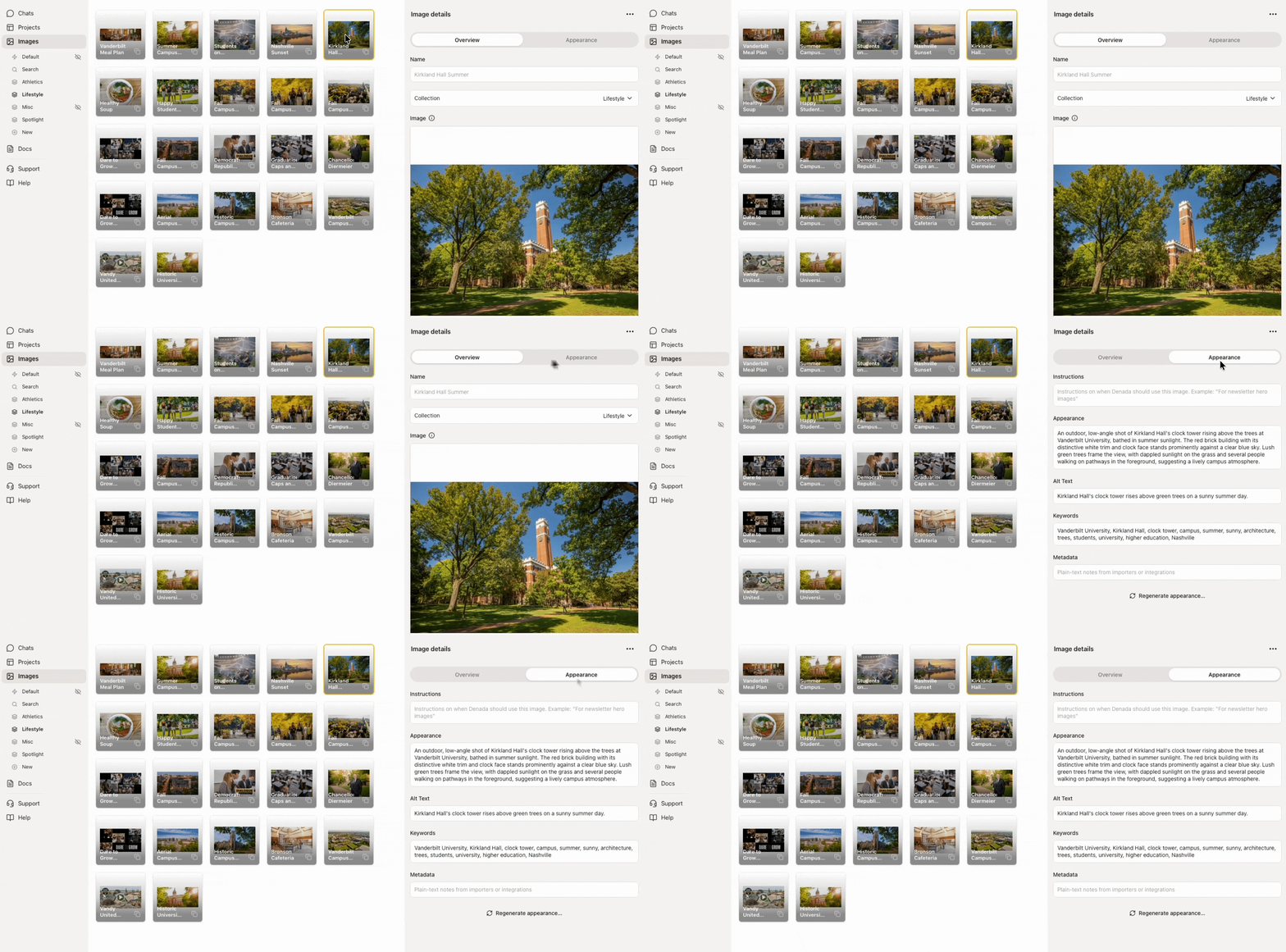
Image details
Click on any image to open the Image details panel on the right. The panel has two tabs:Overview
- Name — the image’s display name (auto-generated on upload, editable).
- Collection — which collection this image belongs to. Use the dropdown to move it.
- Image — a preview of the image. Click the ⓘ icon for the hosted URL.
Appearance
- Instructions — tell Denada when or how to use this image (e.g., “For newsletter hero images”).
- Appearance — an AI-generated description of what’s in the image.
- Alt text — accessibility text for screen readers and fallback display.
- Keywords — auto-generated tags used for search (e.g., “senior woman, smiling, business casual”).
- Metadata — plain-text notes from importers or integrations.
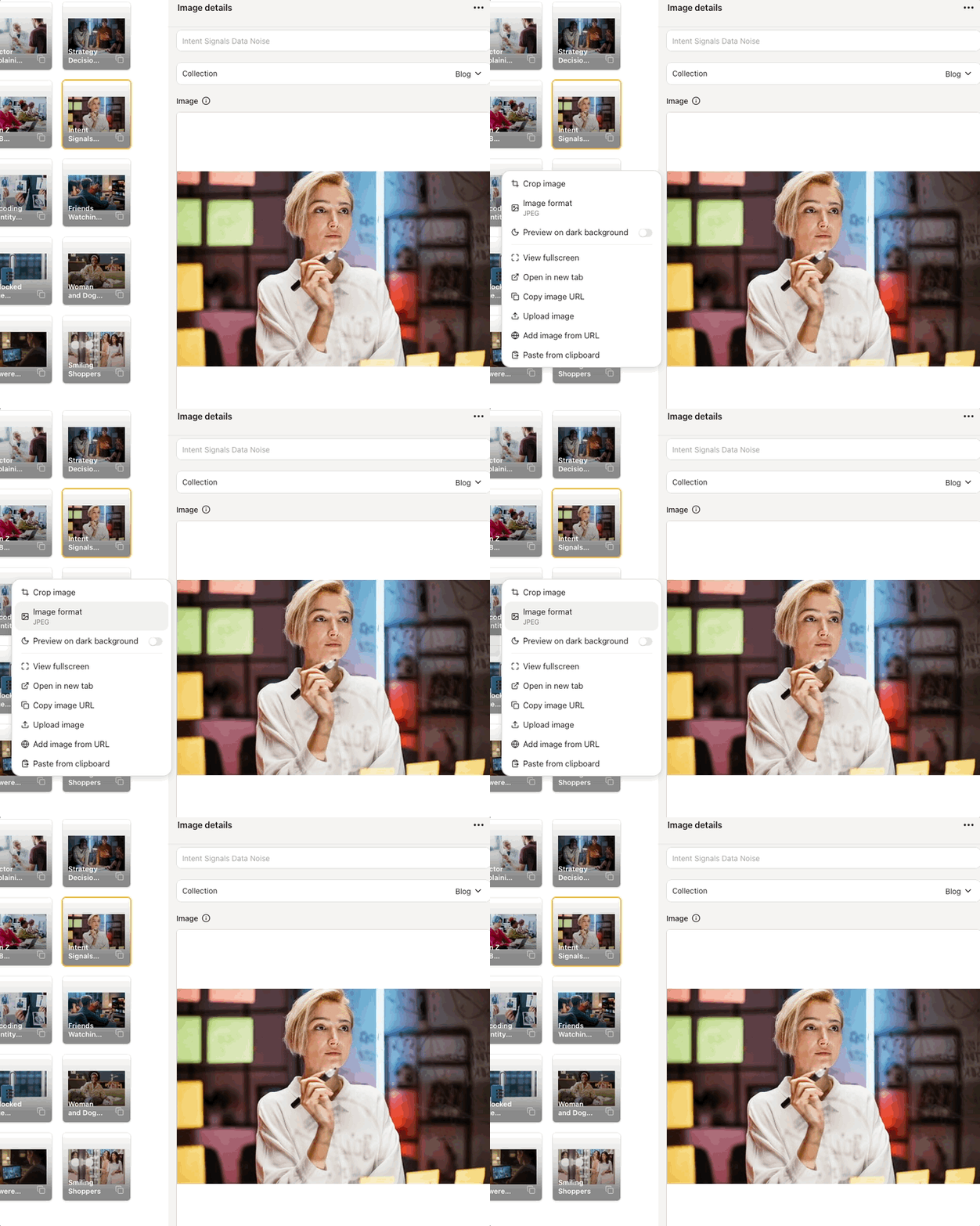
Image actions
Simply click on the image to access these options:- Crop image — adjust the crop area and reposition. The crop applies to this image globally, not per-template.
- Image format — switch between JPG, PNG, and GIF. The current format is shown below the label.
- Preview on dark background — toggle a dark background behind the image to check how transparent PNGs or light images will look.
- View fullscreen — opens the image at full size.
- Open in new tab — opens the image in a new browser tab.
- Copy image URL — copies the hosted image URL to your clipboard.
- Upload image — replace this image with a new file from your computer.
- Add image from URL — replace this image by pasting a direct image URL.
- Paste from clipboard — replace this image with whatever is on your clipboard.
Searching
You can search for images by keyword, title, or description. By default, search looks within the currently selected collection. Use the Search collection in the sidebar to search across all collections at once.Best practices
- Organize with collections. Group related images together by campaign or theme.
- Use descriptive filenames. Good names make images easier to find later.
- Review AI-generated metadata. The automatic descriptions are a great start, but a quick review ensures accuracy.
- Consider image format. Use JPEG for photos and PNG for graphics with transparency.
Collections are shared across your entire team. Any team member can browse, add to, or organize images in any collection.