

Comments are available on the Team plan.
Adding comments
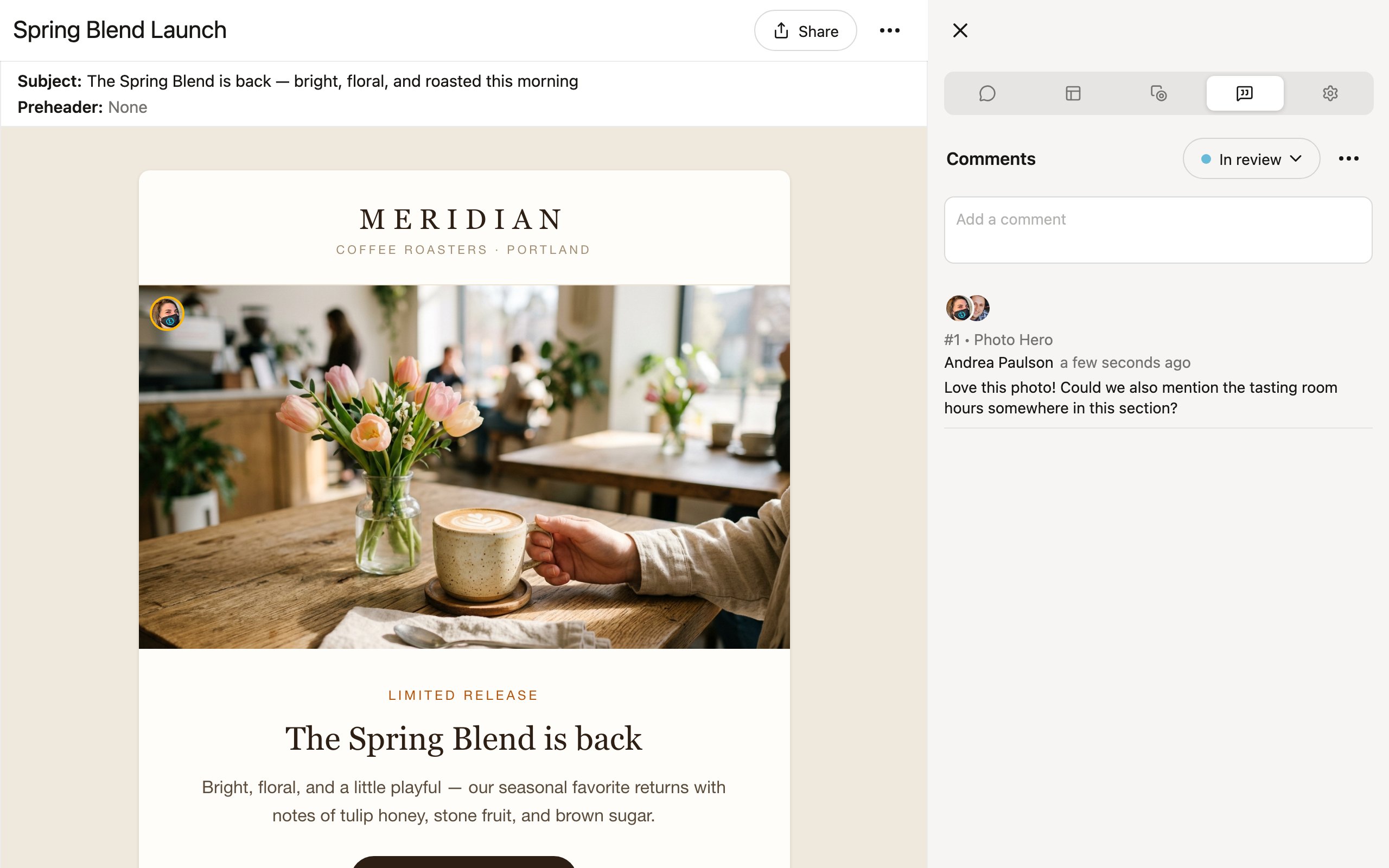
To leave a comment on a project:- Switch to the Comments tab in the right sidebar (Ctrl+4).
- To tie your comment to a specific block, click that block in the preview — the panel filters to that block, and new comments attach to it.
- Type your message in the Add a comment box and submit it.
Threaded discussions
Each comment starts a thread. Click on an existing comment to expand it and add a reply. This keeps conversations organized — one thread per topic instead of a single flat list.@mentions
Tag a teammate in a comment by typing@ followed by their name. They will receive a notification so they know to take a look. This is useful for calling attention to a specific change or asking someone to review a section.
Public vs. private comments
Denada has two kinds of comments, and they are treated differently:Private comments
Private comments are created by your team inside the Denada editor. They are only visible to logged-in members of your Denada team — external reviewers never see them.- Private comments are the default when you add a comment in the editor.
- Use them for internal feedback, design discussions, and notes to teammates.
- You can make a thread public with the Public toggle in the ⋯ menu next to the thread.
Public comments
Public comments come from the published page. When you publish a project to the web and share the link, anyone viewing that page can leave comments — no Denada account required.- Public comments are always visible to everyone, including external reviewers.
- They appear with a different visual style in the sidebar so you can tell them apart from private comments at a glance.
- You can make a public thread private by turning off its Public toggle if you want to hide it from the published page.
- If your project has variations, reviewers can switch between them on the published page and leave comments on each variation individually. Comments are filtered by variation so feedback stays tied to the right version.
Sorting and filtering
The ⋯ menu at the top of the Comments panel controls what you see:- Sort by — Date (newest first) or Layout order (matching the top-to-bottom order of blocks in your project).
- Show resolved comments — include threads that have already been resolved.
- Show private comments — turn off to see only public comments.
Resolving comments
Once feedback has been addressed, resolve the thread to keep the sidebar clean:- Click the ⋯ menu next to the thread.
- Turn on Resolved.
Other comment actions
From the ⋯ menu on any thread, you can also:- Change location (or Set location) — attach the thread to a different block (or, for email projects, the Subject & preheader), or Clear location to detach it.
- Mark as unread — flag the thread so it appears as new again.
- Delete thread — permanently remove the thread (available on your own threads).
Denada acts on comments
Denada reads comments in the editor and can act on them. Click Suggest changes below the latest comment in a thread, and Denada generates a proposed edit based on the discussion. When it’s ready, a View suggested changes link appears — click it to preview what Denada proposes, then Accept or Cancel in the banner above the preview. This means comments double as instructions. A teammate can leave a comment like “Remove the eyebrows” or “Make the CTA more urgent,” and Denada will generate the change for you to review.Comment-driven suggestions are only available in the editor, not on the published page. Public comments from external reviewers will not trigger suggested changes automatically — but you can act on them yourself through chat.
Project statuses
The Comments tab is also where you set a project’s workflow status — the status button sits next to the Comments heading. Statuses like Draft, In review, and Approved keep the whole team oriented, and moving a project to a new status notifies the people following it. Learn more about project statuses →Best practices
- Keep comments focused. One topic per thread makes it easier to resolve feedback systematically.
- Use @mentions for action items. Tagging a person makes it clear who is responsible for the next step.
- Resolve as you go. Clearing resolved threads keeps the sidebar useful and up to date.
- Set visibility intentionally. Default to private for internal notes and switch to public only when you want external reviewers to see the discussion.