

The + New menu
Click + New in the top-right corner of the projects list. The menu offers:- New project — create a new email or landing page from one of your team’s libraries.
- Import project — create a project from a
.projectfile, even one exported from another team. - New folder — create a folder to organize projects (when browsing a folder view).
- New canvas — create a canvas to display multiple projects side-by-side.
Folders and canvases are available on the Team plan. If you’re browsing your private projects, the menu reads New private project instead.
Choosing a library
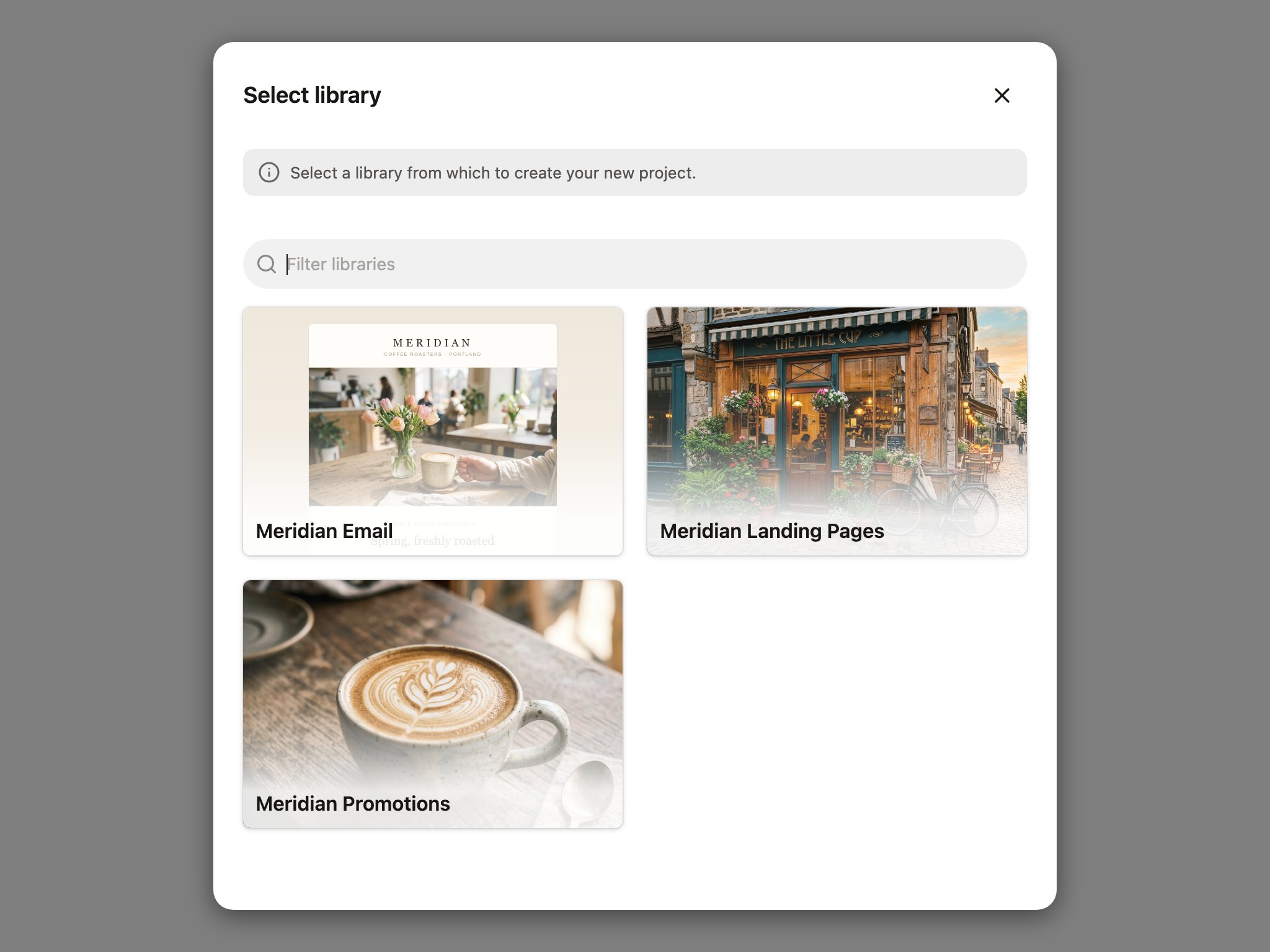
The library you pick determines what kind of project you get: an email library produces an email, and a site library produces a landing page. It also determines the design system — blocks, fonts, colors — the project is built from.- If your team has one library, Denada skips the picker and goes straight to naming: you can name your project now or skip it for later.
- If your team has multiple libraries, a Select library dialog appears so you can choose which one to create from.
The “What would you like to make?” screen
A new project opens on a chat-first screen asking “What would you like to make?”. This is the fastest way to get a first draft: the more context you give Denada, the better the result.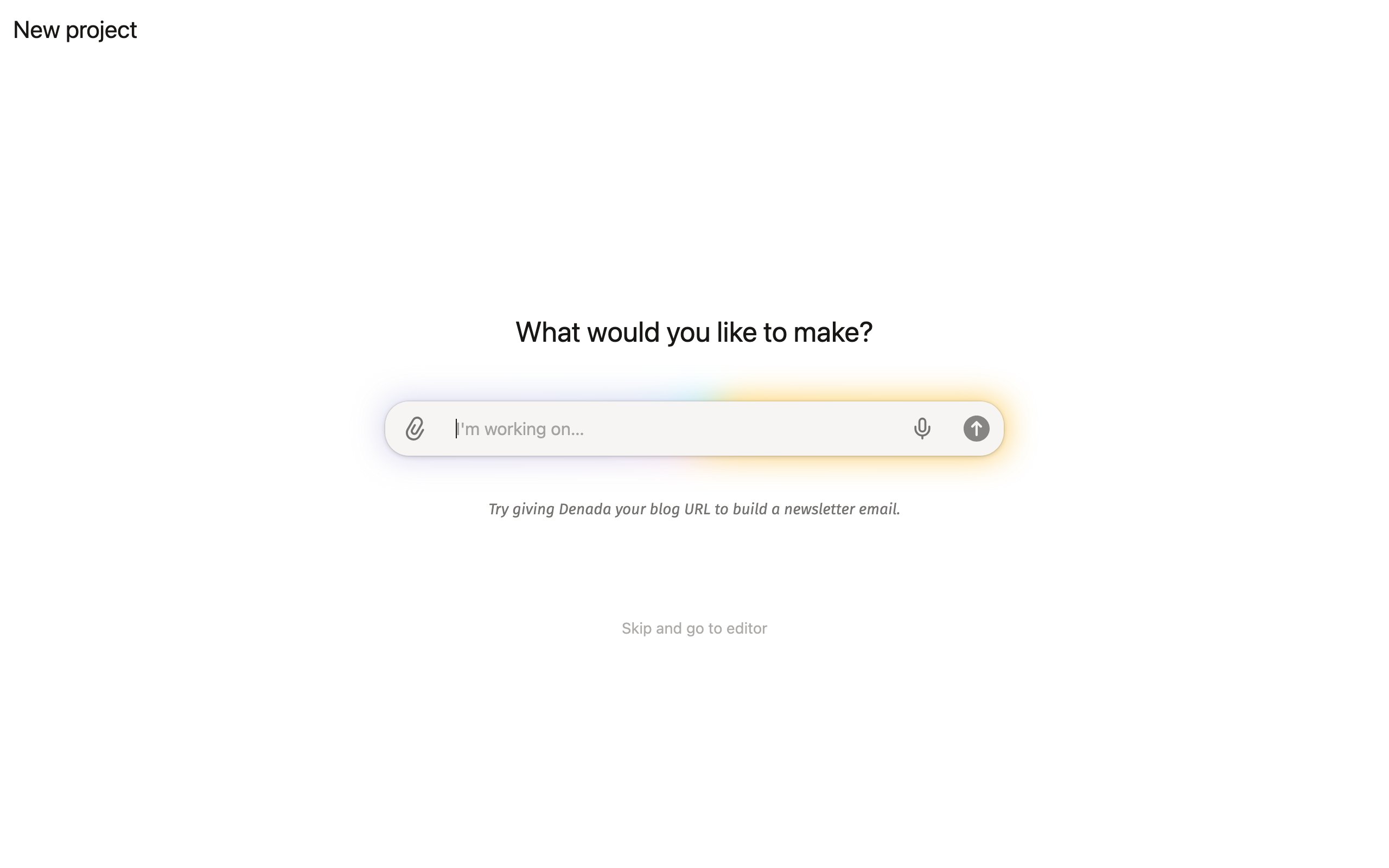
- Type a prompt describing what you need.
- Attach files — creative briefs, reference images, PDFs, or documents.
- Paste a URL for Denada to extract content and images from.
- Use voice input with the microphone button to speak your request.
Skip and go to editor
Prefer to build by hand? Click Skip and go to editor to jump straight into the editor with an empty project. You can still chat with Denada at any time from the Chat tab — skipping just bypasses the initial prompt screen.Starter prompts on demo teams
On demo teams, the new-project screen shows a Try a sample section with ready-made prompts. Click one and Denada fills the chat box with it — send it as-is to generate a sample project, or edit it first.Importing a project
Choose Import project and select a.project file (created with Export project in any project’s options menu, even on another team). Denada creates a new project from the file’s contents. If the file references a library your team doesn’t have, you’ll be asked to select one of your team’s libraries to link it to.