

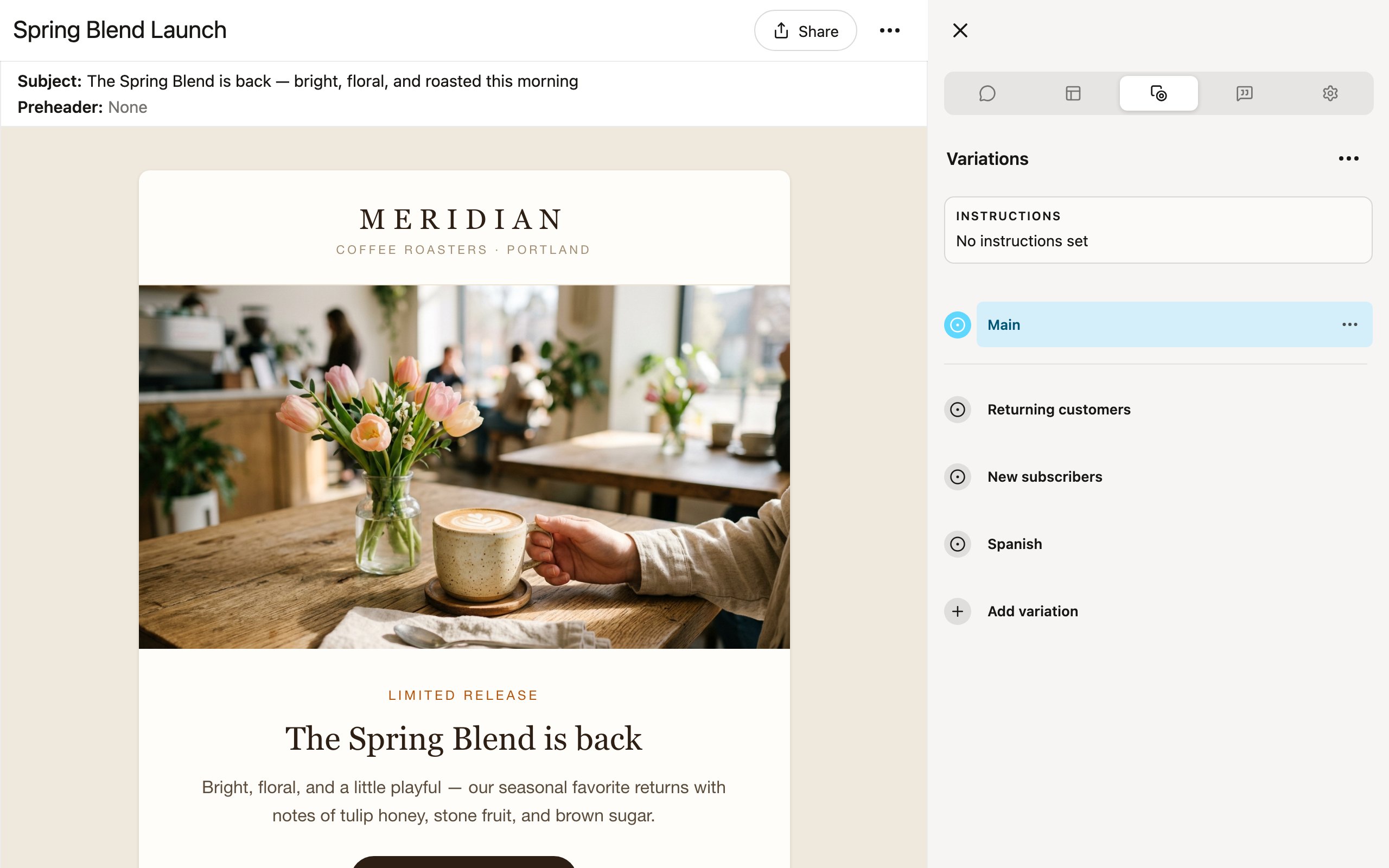
Variations are available on the Team plan.
Common use cases
Persona personalization
Take one campaign and create multiple versions targeted at different audience segments. Each variation can have its own copy, imagery, and tone tailored to a specific persona.“Create 3 variations of this email: one for new customers, one for loyal customers, and one for lapsed customers. Adjust the headline, copy, and CTA for each.”
Translations and localization
Create localized versions of a campaign for different regions. Denada can translate the content, swap URL extensions, and adjust headers and footers for each market.“Make an EU English version and a Spanish version of this email. Translate all content, change the URLs from .com to .es for the Spanish version, and use the EMEA footer instead of the US footer.”
A/B testing
Build split-test versions of a campaign to test different elements — headlines, hero images, CTAs, or completely different layouts.“Make an alternate, more concise version of this email with different blocks for a test.”
Journey and series emails
Start with one email and create the next emails in a sequence. Each variation becomes a step in the journey.“This is a welcome email. Create 3 follow-up variations: the first focused on product features, the second on customer stories, and the third on a limited-time offer.”
Dynamic content
Convert a standard email into a dynamic content version with proper scripting and logic for your ESP.“Create a dynamic content version of this email with Iterable Handlebars logic to show different hero images based on the user’s loyalty tier.”
For per-recipient logic inside a single email — block variants, conditional rendering, merge fields — see Personalization & dynamic content. Variations are complete parallel deliverables; dynamic content is resolved by your ESP for each recipient.
Creating variations
- Open any project in the editor.
- Switch to the Variations tab in the sidebar (Ctrl+3).
- Click Setup (or, once variations exist, click the Instructions cell at the top of the tab).
- In the Edit instructions dialog, describe what you want — the more specific you are, the better the result.
- Click Save.
Managing variations
The Variations tab lists the main version first, then every variation. Once generated, you can:- View — click a variation to preview it in the editor.
- Edit — switch to the Edit tab while viewing a variation to change its blocks and parameters independently.
- Reorder — drag variations by their handles to change their order.
- Rename — from a variation’s ⋯ menu, choose Rename.
- Edit instructions — change the instructions for a single variation.
- Regenerate — regenerate one variation (Regenerate), or every variation at once from the tab’s ⋯ menu (Regenerate all). Regenerating overwrites any manual edits, and Denada warns you if anyone has modified the variation since the last generation.
- Delete — remove one variation (Delete), or all of them (Delete all in the tab’s ⋯ menu).
Reviewing variations on the web
When you publish a project to the web, reviewers can browse through all variations directly from the shared link. The Options menu on the published page lets them switch between variations and preview each one. They can also leave comments on specific variations, so feedback is tied to the right version. Learn more about publishing to the web →Exporting variations
You can export variations individually or all at once. In the Share menu, toggle Export all variations to include every variation in your export. Available export formats for variations:- ZIP — each variation as a separate HTML file.
- CSV — all variations in a spreadsheet with one row per variation and columns for each parameter.
- Platform export — push each variation to your connected ESP.
Export instructions are remembered in your browser so you do not need to re-enter them each time.
Tips
- Be specific in your instructions. “Make 3 versions with different tones” is good. “Make 3 versions” without further direction will mostly just rephrase the same content.
- Reference the structure. If you want variations with different blocks or layouts, say so explicitly — otherwise Denada keeps the same structure and just changes the content.
- Name your variations. Clear names like “US English,” “Spain - Spanish,” and “Germany - German” make it easy to find and export the right version.
- Review before exporting. Variations are AI-generated starting points. A quick human review ensures everything aligns with your brand and messaging goals.