

What you need
- A Denada project with an email ready to push
- An Iterable account with a server-side API key (found in your Iterable project under Settings > API keys)
Connect Denada to Iterable
- Open the Share menu on any project and scroll down to find the Configure option under Integrations. (You can also open your team’s Settings page and click Add integration in the Integrations panel — manager access required.)
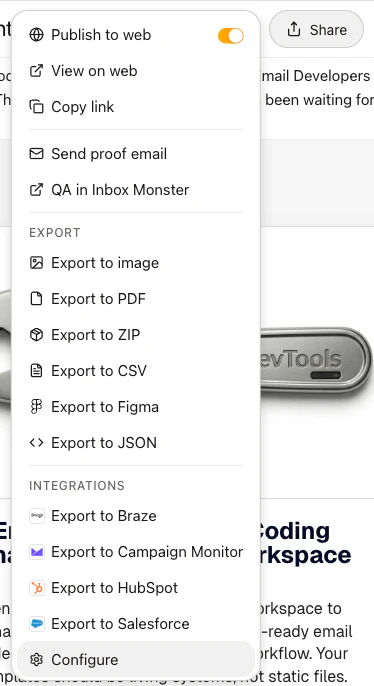
The Share menu showing integration options.
- In the Integrations dialog, select Iterable.
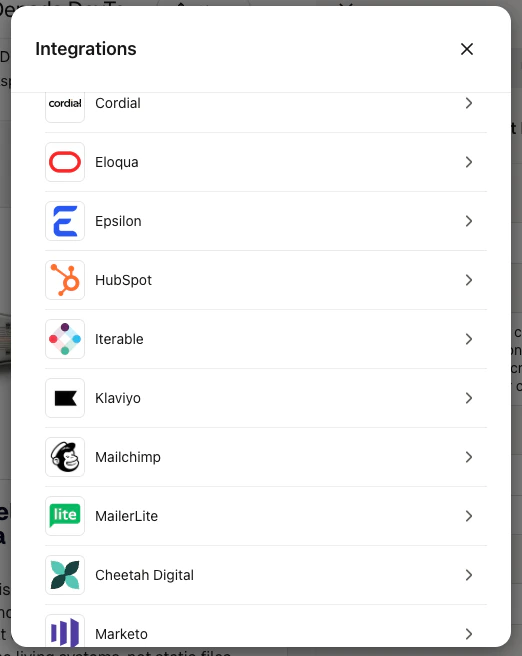
The integrations list showing available ESPs.
- Enter an optional Name for this configuration (useful if you have multiple Iterable projects) and your API key.
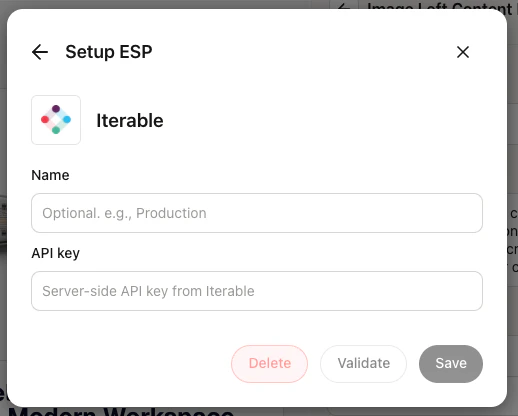
The Iterable setup dialog.
- Click Validate to verify your API key works, then click Save.
Push an email to Iterable
- Open the project you want to push and click Share.
- Under Integrations, select Export to Iterable (this option appears once you’ve saved at least one Iterable configuration).
- Enter a Template name — this is the name that will appear in Iterable’s Templates section.
- Click Export.
How it works
When you push an email:- Denada renders the final HTML from your project and its current parameter values.
- Any curly braces (
{and}) in your HTML are escaped so Iterable doesn’t interpret them as Handlebars merge tags. If you need Iterable merge tags, add them in Iterable after export. - The email is upserted in Iterable — if an Iterable template with the same name exists, it is updated in place; otherwise a new one is created. Re-exporting with the same name always updates the same Iterable template.
- The email subject line from your project is included in the export.
Troubleshooting
'Invalid API key' error during validation
'Invalid API key' error during validation
Make sure you’re using a server-side API key from Iterable, not a standard or mobile key. You can find this under Settings > API keys in your Iterable project.
Export fails with a permissions error
Export fails with a permissions error
Your API key may not have the required permissions. Ensure the key has access to create and update email templates in Iterable.
Name conflict
Name conflict
If an Iterable template with the same name already exists, Denada will ask if you’d like to overwrite it. Choose a different name if you want to keep both versions.