

Inviting members
To add someone to your team:1
Open Settings
Go to Settings in the sidebar.
2
Add the member
Click Add member at the bottom of the Members list and enter the person’s email address.
3
Send the invitation
Click Add member to send it. The invitee receives an email with a link to join your team (unless your team is on a demo plan, in which case they’re added quietly without an email).
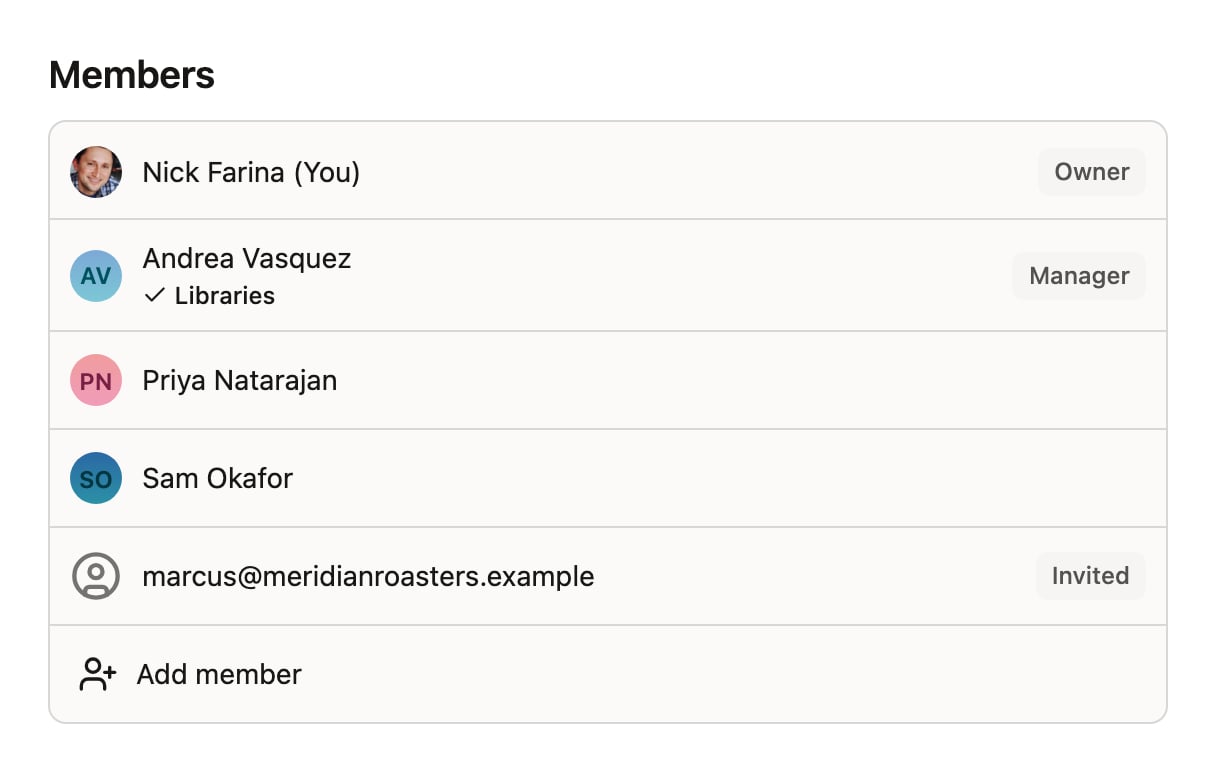
Inviting members requires manager or owner access.
Access levels
Every team member has one of three access levels.
A few rules to keep in mind:
- Only owners can promote someone to owner, or change an existing owner’s level.
- Managers can change access levels for members and other managers, but not owners.
Permissions
In addition to access levels, individual permissions can be toggled on or off for each member:- Libraries — access to the library building system. This is off by default for everyone. An owner or manager must enable it for anyone who needs to create or edit library designs; it also reveals the Libraries and Fonts sections in the sidebar.
Library access is deliberately restricted. Libraries control your brand guardrails, so only team members who need to build or modify them should have this permission enabled.
Changing a member’s access level
- Go to Settings.
- Click the member in the Members list.
- Click Access level to open the selector.
- Choose the new level, and toggle any permissions.
Removing members
- Go to Settings.
- Click the member you want to remove.
- Choose Remove from team.
- Confirm with Remove.
Your account
Click your name or avatar in the app header to open your account menu. From here you can:- Update your profile. Click your name to change it, or click your avatar to upload a new picture.
- Change email address — update the email you sign in with.
- Manage API token — your personal token for connecting AI agents.
- Sign out of Denada.
Multiple teams
If you belong to more than one team, they’re listed under Teams in your account menu — click any team to switch to it. Choose New team to create a fresh team; you’ll be its owner and can invite others to join.Integrations
Below the Members list, managers and owners will find the Integrations section, where you can connect email platforms. Click Add integration to set up a new connection. Learn more about integrations →Best practices
- Use the member role for most people. Give manager or owner access only to people who need to administer the team.
- Grant library access sparingly. Only enable the Libraries permission for people who need to build or modify library designs.
- Keep at least two owners. This ensures someone can always manage the team if one owner is unavailable.
- Review membership periodically. Remove people who have left the organization or no longer need access.