Any agent that supports MCP over HTTP can connect to Denada. You need two things: the server URL and a personal API token.

The server

Denada’s MCP server lives at:
It uses MCP’s streamable HTTP transport with plain JSON responses — stateless, with no SSE or session affinity — so it works with every mainstream MCP client. Authentication is a standard bearer token on each request:

Get an API token

Your agent authenticates with a personal API token that lets it act as you:
  1. Click your account avatar in Denada and choose Manage API token.
  2. Click Generate token, then copy it.
You can regenerate or delete the token from the same dialog at any time — any agent using the old token immediately stops working.
This personal token is different from the team API tokens in team settings, which are used by integrations like the Figma plugin. Agents connect with your personal token only.
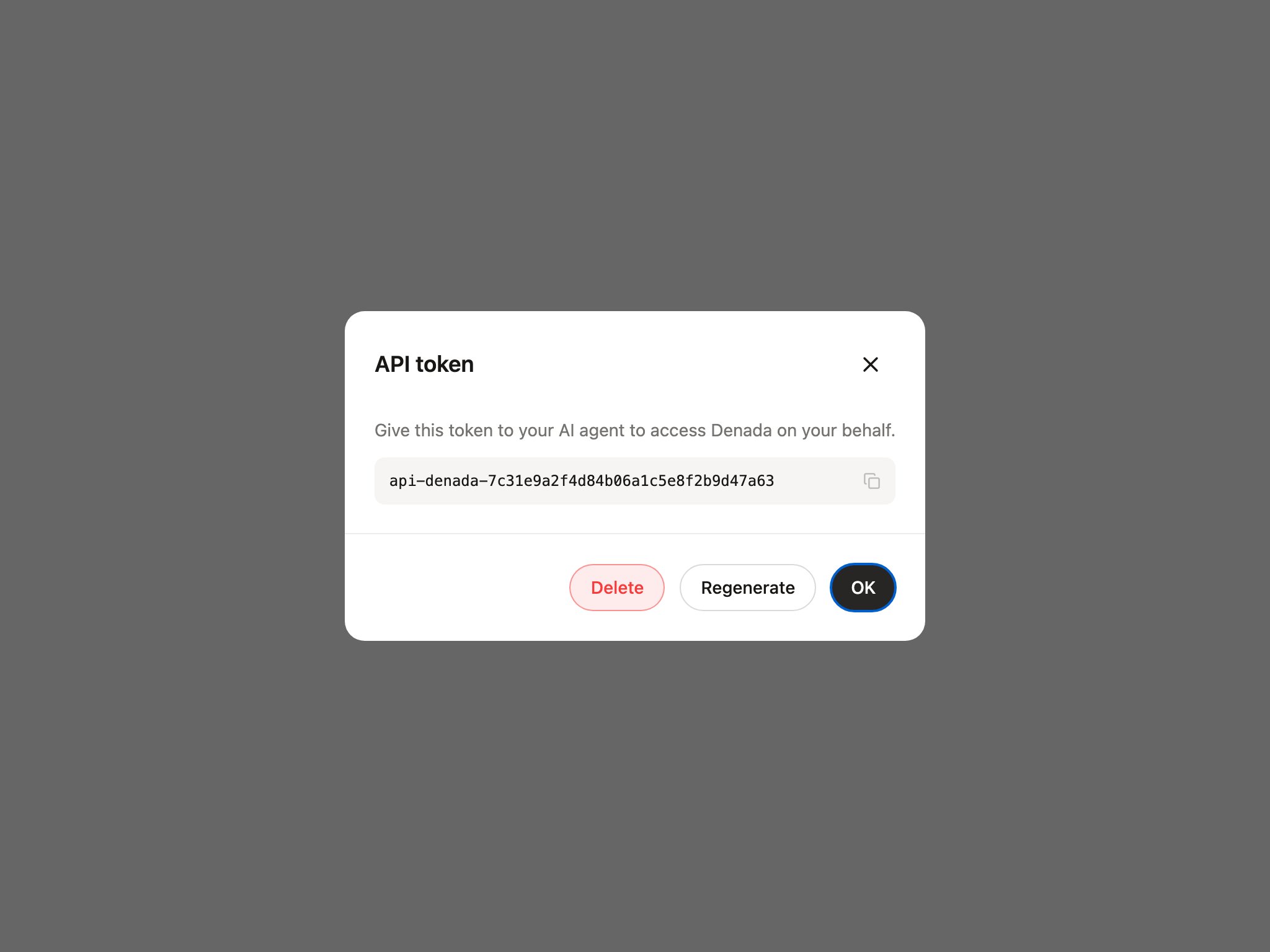
API token dialog showing a generated personal token with a copy control and Delete, Regenerate, and OK buttons
Treat the token like a password: it grants everything your account can do. Don’t commit it to source control or share it.
The Edit with external tools option in the chat sidebar of the library and project editors does all of this for you — it generates your token and shows connect commands with the token already filled in.

Claude Code

Codex

Add to ~/.codex/config.toml:

Gemini CLI

Cursor and other MCP clients

Most other clients accept a JSON MCP configuration along these lines (Cursor: .cursor/mcp.json):

Try it out

Once connected, give your agent a first task to confirm everything works:
Check out my Denada library and give me an overview of its blocks.
The agent will discover Denada’s tools and built-in guides on its own from there. See What agents can do for everything it has access to.