

Interface Overview
Denada provides an intuitive workflow for creating marketing content, starting with an AI chat conversation and moving to a powerful editor for refinement.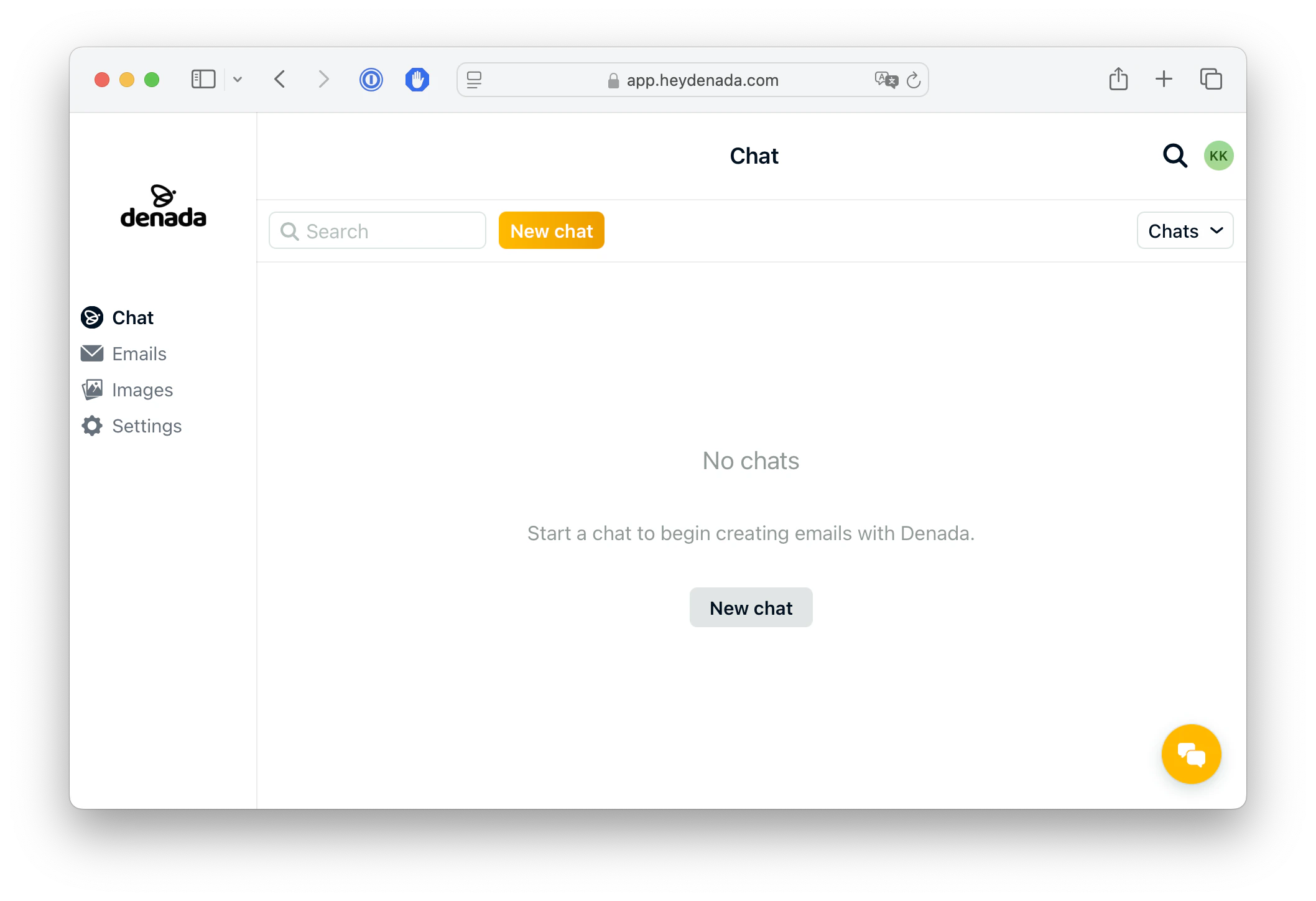
Everything is 100% mobile friendly too, so you can do this ALL from your
phone:
The Denada Workflow
The typical workflow in Denada follows these steps:- Start a conversation in the AI chat interface
- Generate content by describing what you need
- Save the output when you’re satisfied
- Refine the content in the specialized editor
- Export or publish your finalized content

Starting with Chat
The AI chat interface is your starting point for creating content:- Begin by describing what you want to create in everyday language
- Have a natural conversation with our AI assistant
- Refine your request through back-and-forth dialogue
- Review generated content directly in the chat
- Iterate on drafts until you’re satisfied
Moving to the Editor
Once you’ve generated content in the chat:- Click the “Save” or “Send to Editor” button
- The content will open in the appropriate specialized editor
- Your content is now ready for detailed refinement
- Fine-tuning the design and layout
- Making content adjustments
- Adding or replacing images
- Creating variations of your content
- Previewing how content will appear in different contexts
- Sharing it with others
Working with Images
Throughout both the chat and editor interfaces, you have access to the Image Library:- Upload images from your device
- Generate images using AI
- Select from your organized image collections
- Edit and crop images as needed
Creating Variations
Once you have your content in the editor, you can:- Create different versions with varying tones, lengths, or formats
- A/B test different approaches
- Export all variations for review
Tips for Success
- Start broad, then refine: Begin with a general description in chat, then get specific
- Use natural language: Write to the AI as you would explain to a colleague
- Leverage references: Share URLs or examples to guide the AI
- Save iterations: Create variations to explore different approaches
- Combine interfaces: Use chat for ideation and editor for precision
This overview provides a high-level understanding of the Denada workflow. Each
interface has more advanced capabilities covered in their dedicated
documentation sections.