

Single sign-on (SSO)
Denada supports SAML-based single sign-on (SSO), allowing your team members to sign in using your organization’s identity provider (IdP) such as Okta, Azure AD, Google Workspace, or OneLogin.SSO setup requires manager permissions on your team.
Prerequisites
Before you begin, make sure you have:- A Denada team with manager-level access
- Administrator access to your organization’s identity provider (IdP)
- Your IdP’s SAML metadata XML (provided by your IdP)
Step 1: Get Denada’s service provider details
When configuring your identity provider, you’ll need the following details about Denada:| Field | Value |
|---|---|
| ACS (Assertion Consumer Service) URL | https://cloud.heydenada.com/api/saml/callback |
| SP metadata URL | https://cloud.heydenada.com/api/saml/metadata |
| NameID format | urn:oasis:names:tc:SAML:1.1:nameid-format:emailAddress |
Step 2: Configure your identity provider
The exact steps vary depending on your IdP, but generally you’ll need to:- Create a new SAML application in your IdP.
- Enter the ACS URL and SP metadata URL from the table above.
- Set the NameID format to email address.
- Assign users or groups that should have access to Denada.
- Copy the IdP metadata XML — you’ll need this for the next step.
Okta
Okta
- In the Okta admin console, go to Applications > Applications > Create App Integration.
- Select SAML 2.0 and click Next.
- Enter “Denada” as the app name and click Next.
- Set the Single sign-on URL to
https://cloud.heydenada.com/api/saml/callback. - Set the Audience URI (SP Entity ID) to the value from your SP metadata.
- Set Name ID format to EmailAddress.
- Click Next, then Finish.
- Go to the Sign On tab and click View SAML setup instructions or Identity Provider metadata to copy the metadata XML.
Azure AD (Entra ID)
Azure AD (Entra ID)
- In the Azure portal, go to Enterprise Applications > New application > Create your own application.
- Name it “Denada”, select Integrate any other application, and click Create.
- Go to Single sign-on > SAML.
- Under Basic SAML Configuration, set the Reply URL (ACS) to
https://cloud.heydenada.com/api/saml/callback. - Set the Identifier (Entity ID) to the value from your SP metadata.
- Under User Attributes & Claims, ensure the NameID is set to user.mail.
- Download the Federation Metadata XML from the SAML Signing Certificate section.
Google Workspace
Google Workspace
- In the Google Admin console, go to Apps > Web and mobile apps > Add app > Add custom SAML app.
- Name it “Denada” and click Continue.
- Copy the IdP metadata from the Google IdP information page (you’ll paste this into Denada).
- Set the ACS URL to
https://cloud.heydenada.com/api/saml/callback. - Set the Entity ID to the value from your SP metadata.
- Set Name ID format to EMAIL.
- Click Finish, then turn the app ON for the relevant organizational units.
Step 3: Configure SSO in Denada
- Open Settings in the Denada app.
- Scroll to the Single sign-on section and click Setup SSO.
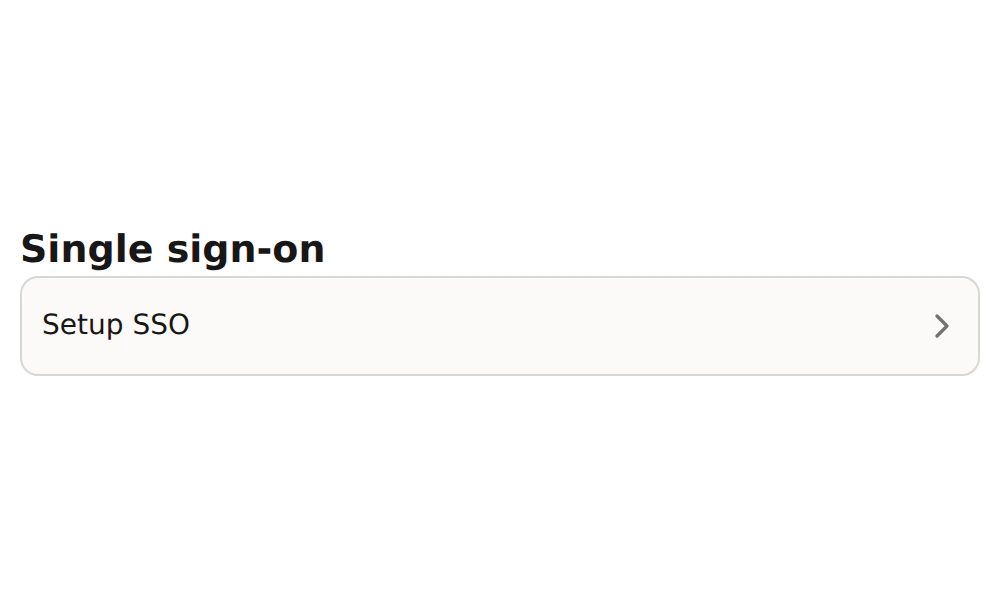
- Paste your IdP metadata XML into the text area. Denada will validate the metadata and display the detected issuer.
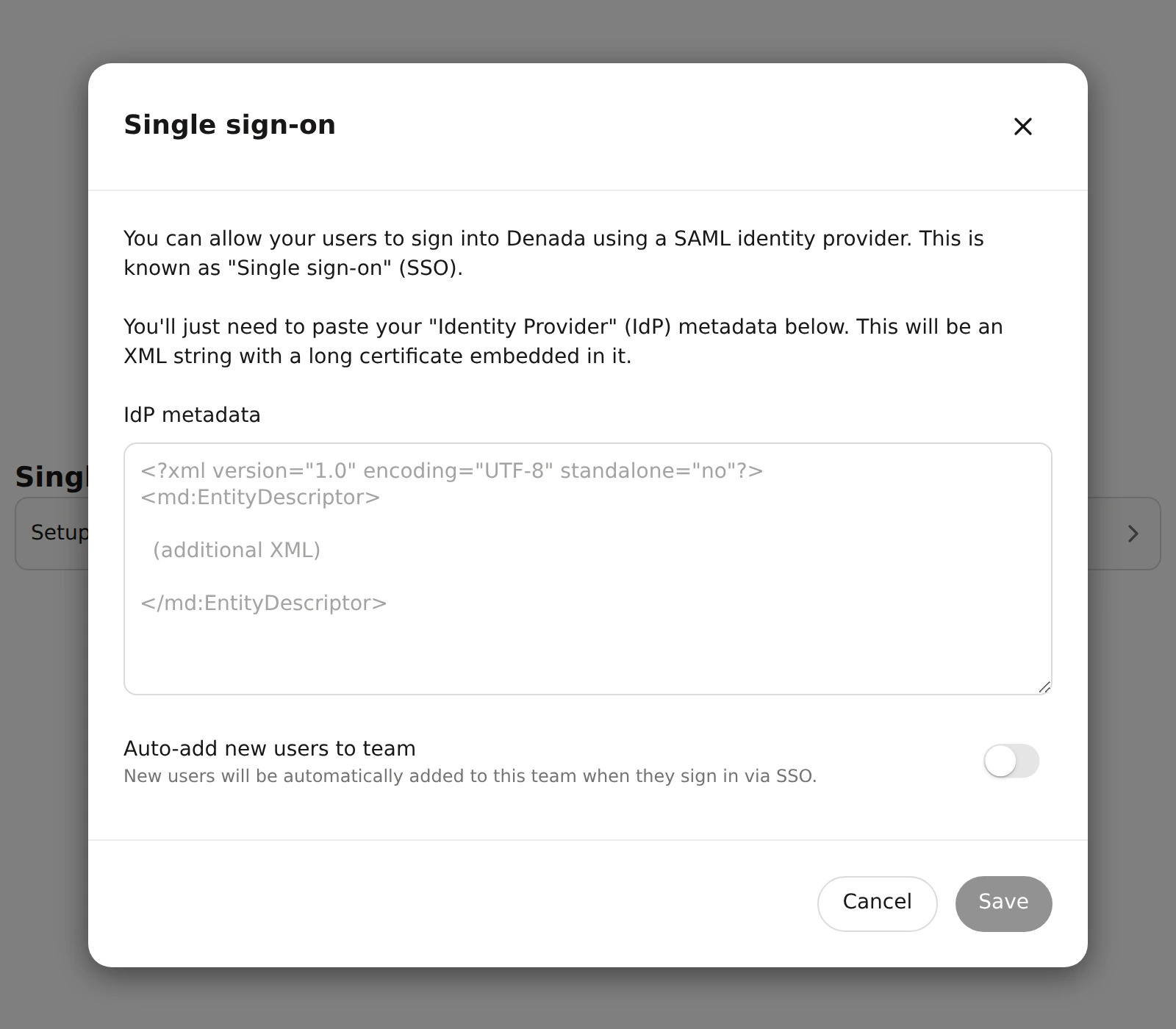
- Optionally, enable Auto-add new users to team — when turned on, any user who signs in via SSO will automatically be added as a member of your team.
- Click Save.
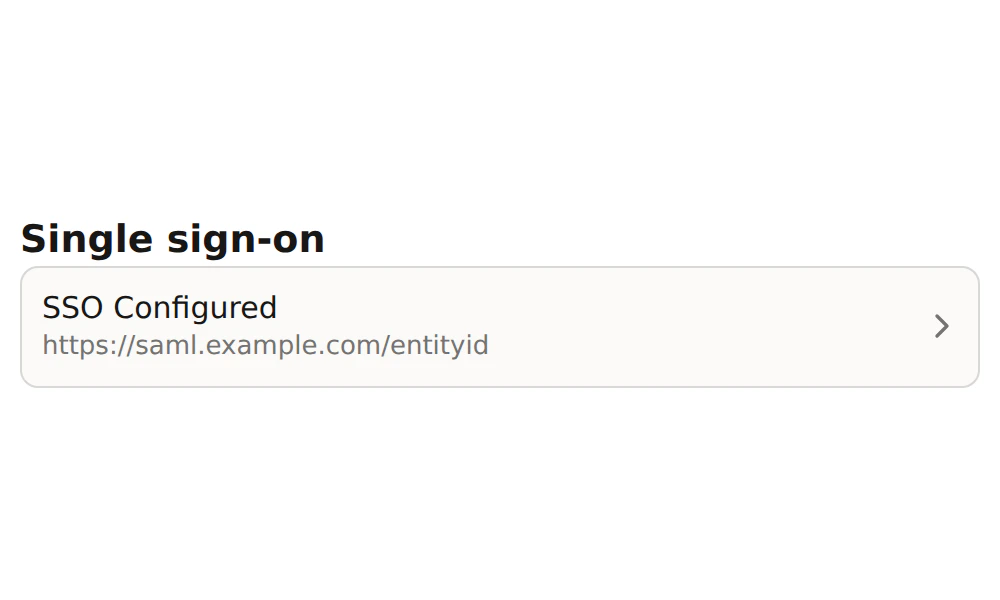
How SSO login works
When a user signs in via SSO:- They are redirected to your identity provider to authenticate.
- After successful authentication, the IdP sends a SAML response back to Denada.
- Denada validates the response and signs the user in (or creates a new account if needed).
- If auto-add is enabled, new users are automatically added to your team.
Troubleshooting
'Invalid metadata' error when pasting XML
'Invalid metadata' error when pasting XML
Make sure you’re pasting the complete IdP metadata XML, starting with
<?xml and ending with </md:EntityDescriptor> or </EntityDescriptor>. Some IdPs provide a download link rather than displaying the XML directly — use that to get the full content.SSO configuration shows an error badge
SSO configuration shows an error badge
This typically means the metadata XML was saved but couldn’t be fully parsed. Click the SSO configuration to re-open the dialog, and re-paste the metadata from your IdP. Ensure there are no extra spaces or truncated content.
Users aren't being added to the team automatically
Users aren't being added to the team automatically
Verify that the Auto-add new users to team toggle is enabled in the SSO configuration dialog. Users who haven’t yet created a Denada account will receive an invitation when they first sign in via SSO.
'No SSO config found for issuer' error
'No SSO config found for issuer' error
This means the issuer in the SAML response doesn’t match any configured SSO setup. Double-check that the Entity ID / Issuer in your IdP matches what Denada detected when you pasted the metadata.