> ## Documentation Index
> Fetch the complete documentation index at: https://help.heydenada.com/llms.txt
> Use this file to discover all available pages before exploring further.
# Workspace settings
> Team-wide settings that control how Denada behaves for everyone on your team
A few settings apply to your whole team. You'll find them on the **Settings** page, and they require manager or owner access to change.
## Team name and contact email
The **Team** panel at the top of Settings shows your team's name and contact email. Click your team's logo to upload a new one, or click **Edit** to change:
* **Name** — your team's name as it appears throughout Denada.
* **Email** — used for private communications between the Denada team and yours.
* **Newsletter** — opt in to receive occasional (about once a month) updates about Denada. You can also opt in when you first create a team.
## AI image generation
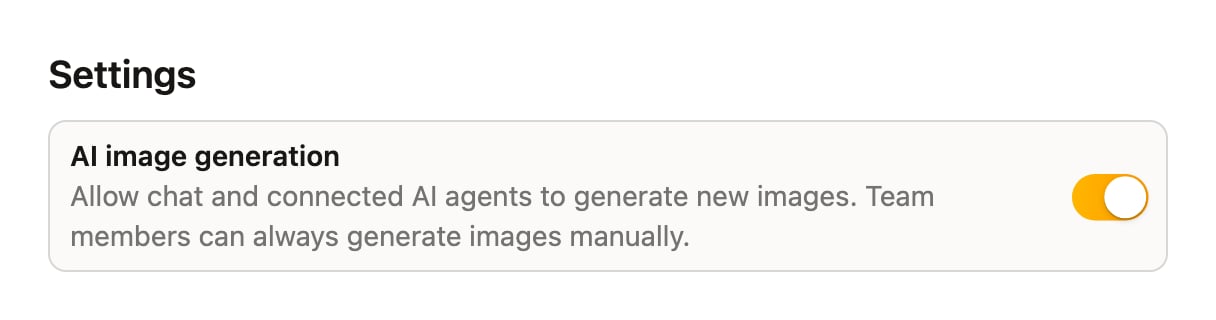
The **Settings** panel contains the **AI image generation** toggle:
> Allow chat and connected AI agents to generate new images. Team members can always generate images manually.
This is **off by default**. When it's off, Denada and any [connected AI agents](/agents/connecting) won't create new AI images on their own — they'll work with the images already in your [image library](/image-library/collections). Team members can still generate images themselves in the app at any time.
Turn it on if you want Denada to be able to generate imagery while building projects for you.
 [Learn more about AI images →](/image-library/ai-images)
More workspace-wide settings will appear here as Denada grows.
[Learn more about AI images →](/image-library/ai-images)
More workspace-wide settings will appear here as Denada grows.