> ## Documentation Index
> Fetch the complete documentation index at: https://help.heydenada.com/llms.txt
> Use this file to discover all available pages before exploring further.
# The library editor
> Edit blocks, parameters, the shell, versions, and publishing from the library editor
The library editor is where a library's blocks, parameters, and settings are built and maintained. Open it by clicking **Libraries** in the sidebar, then clicking any library.
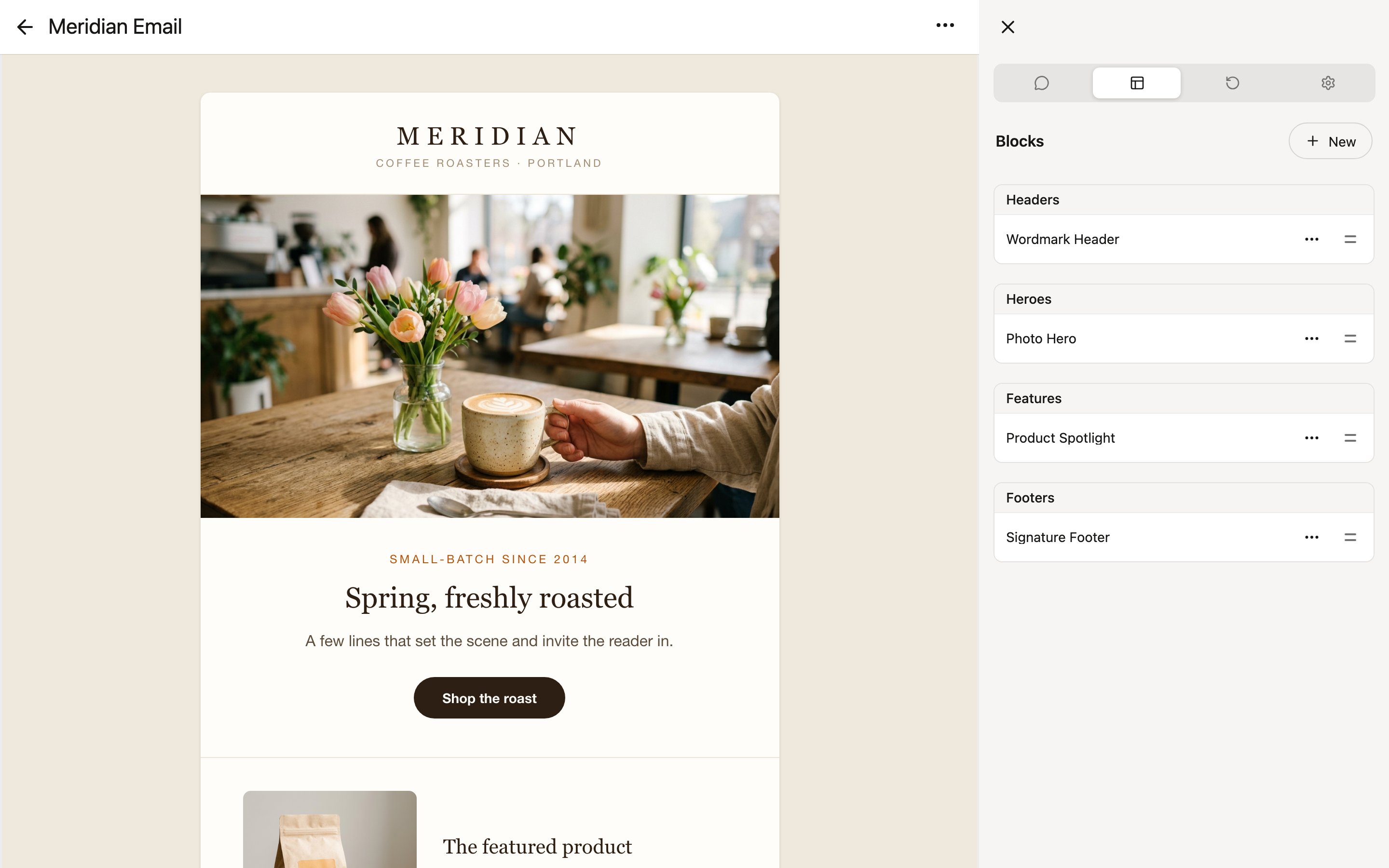 The editor has two parts: a preview of the library's blocks rendered with their example values, and a sidebar with four tabs — **Chat**, **Edit**, **Versions**, and **Options**.
Click any block in the preview to jump straight to it in the sidebar. If the selection overlays get in your way, open the library menu and turn on **Disable overlays** to click elements in the rendered preview directly.
## Chat tab
The **Chat** tab works like project chat, but for the library itself: describe blocks you want, ask Denada to restyle existing ones, or have it define parameters — and it edits the library directly. You can keep multiple chats, including private chats only you can see.
The chat list also offers **Edit with external tools**, which walks you through connecting an AI agent like Claude Code or Codex to work on the library from outside Denada. See [Working with AI agents](/agents/overview).
## Edit tab
The **Edit** tab lists the library's blocks. Click **New** to add one:
* **New empty block…** — start a fresh block and write or paste its HTML.
* **Paste block…** — paste a block copied from another library.
Click a block to open its settings:
* **Published** — whether the block is available for building projects. Keep a block unpublished while it's a work in progress.
* **Category** — groups related blocks (headers, content, footers); choose **New category…** to create one.
* **Block HTML** — opens the block's HTML editor. Block HTML is written with [Eta](https://eta.js.org) syntax, so it can reference the block's parameter values.
* **Appearance** — a short written description of what the block looks like, since Denada cannot "see" the rendered result.
* **Chat instructions** — guidance for Denada on how to fill out this block when building projects.
### Parameters
Below the block's settings is its parameter list. Click **New parameter…** to add one, or click an existing parameter to edit its type, default value, and instructions. Parameters can be of type **Text**, **Link**, **Image**, **Boolean**, **Enum**, **Color**, **Insets**, or **List** (a repeating group of content within a block) — see the [libraries overview](/libraries/libraries-overview#parameter-types) for what each is for.
The editor has two parts: a preview of the library's blocks rendered with their example values, and a sidebar with four tabs — **Chat**, **Edit**, **Versions**, and **Options**.
Click any block in the preview to jump straight to it in the sidebar. If the selection overlays get in your way, open the library menu and turn on **Disable overlays** to click elements in the rendered preview directly.
## Chat tab
The **Chat** tab works like project chat, but for the library itself: describe blocks you want, ask Denada to restyle existing ones, or have it define parameters — and it edits the library directly. You can keep multiple chats, including private chats only you can see.
The chat list also offers **Edit with external tools**, which walks you through connecting an AI agent like Claude Code or Codex to work on the library from outside Denada. See [Working with AI agents](/agents/overview).
## Edit tab
The **Edit** tab lists the library's blocks. Click **New** to add one:
* **New empty block…** — start a fresh block and write or paste its HTML.
* **Paste block…** — paste a block copied from another library.
Click a block to open its settings:
* **Published** — whether the block is available for building projects. Keep a block unpublished while it's a work in progress.
* **Category** — groups related blocks (headers, content, footers); choose **New category…** to create one.
* **Block HTML** — opens the block's HTML editor. Block HTML is written with [Eta](https://eta.js.org) syntax, so it can reference the block's parameter values.
* **Appearance** — a short written description of what the block looks like, since Denada cannot "see" the rendered result.
* **Chat instructions** — guidance for Denada on how to fill out this block when building projects.
### Parameters
Below the block's settings is its parameter list. Click **New parameter…** to add one, or click an existing parameter to edit its type, default value, and instructions. Parameters can be of type **Text**, **Link**, **Image**, **Boolean**, **Enum**, **Color**, **Insets**, or **List** (a repeating group of content within a block) — see the [libraries overview](/libraries/libraries-overview#parameter-types) for what each is for.
 ## Versions tab
The **Versions** tab is the library's history:
* Checkpoint versions are created automatically after 30 minutes of inactivity.
* Click **Save current version** to record a named version at a meaningful milestone.
* Changes committed by connected AI agents appear here too, with the message the agent supplied.
Each version's menu lets you **Rename version**, **Restore this version**, create a **New library from this version**, or **Set as current version**. Setting a current version marks a stable release: projects that adopt the library use that version instead of the latest draft.
Selecting a version shows the library as it was at that point, so you can review before restoring.
## Options tab
The **Options** tab holds library-wide settings:
* **Published** — makes the library available to Denada and your team for building projects.
* **Type** — **Email** or **Site** (landing pages).
* **Scripting language** — enables dynamic content for [personalization](/editor/personalization), wrapped in this syntax on export: **Liquid** (Braze, Mailchimp, Shopify) or **Django** (Klaviyo). Leave it on **None** to disable dynamic content for this library.
* **Thumbnail** — an optional image that replaces the full library rendering in tiles.
* **Shell HTML** — opens the editor for the library's shell (see below).
* **Chat instructions** — guidance for Denada on how to use the library as a whole. For example, you might explain to include one header block, up to five body blocks, then a standard footer.
* **Theme** — the library-level parameters, shared by every block.
## The shell
The shell is the outer HTML document that wraps the assembled blocks in every rendered project: the ``, font loading ([hosted fonts](/libraries/fonts) give you permanent `@font-face` URLs), CSS resets, and page frame. Edit it from **Options** → **Shell HTML**. Parameters you define at the shell level appear in the **Theme** panel and are available to every block — ideal for shared values like a brand color.
## Publishing
Publishing happens at two levels:
* **The library** — the **Published** toggle in **Options** controls whether the library is available at all.
* **Individual blocks** — each block's **Published** toggle controls whether that block is offered when building projects. You can also publish or unpublish a block directly from its tile in the block list.
## Undo and redo
Every change in the library editor is undoable. Use the library menu's undo and redo items, or press Cmd+Z and Shift+Cmd+Z (Ctrl+Z / Ctrl+Y on Windows).
## The library menu
The menu in the editor's header collects library-wide actions:
* **Rename** — rename the library.
* **Edit combined HTML** — edit all of the library's block HTML in a single document.
* **Edit library file** — edit the library's portable text format directly, like a virtual export and re-import.
* **Export library** — download a `.library` file that can be imported into another team.
* **Import library** — replace this library's contents with an uploaded `.library` file. A checkpoint of the current version is saved first.
* **Delete library** — delete the library.
## Versions tab
The **Versions** tab is the library's history:
* Checkpoint versions are created automatically after 30 minutes of inactivity.
* Click **Save current version** to record a named version at a meaningful milestone.
* Changes committed by connected AI agents appear here too, with the message the agent supplied.
Each version's menu lets you **Rename version**, **Restore this version**, create a **New library from this version**, or **Set as current version**. Setting a current version marks a stable release: projects that adopt the library use that version instead of the latest draft.
Selecting a version shows the library as it was at that point, so you can review before restoring.
## Options tab
The **Options** tab holds library-wide settings:
* **Published** — makes the library available to Denada and your team for building projects.
* **Type** — **Email** or **Site** (landing pages).
* **Scripting language** — enables dynamic content for [personalization](/editor/personalization), wrapped in this syntax on export: **Liquid** (Braze, Mailchimp, Shopify) or **Django** (Klaviyo). Leave it on **None** to disable dynamic content for this library.
* **Thumbnail** — an optional image that replaces the full library rendering in tiles.
* **Shell HTML** — opens the editor for the library's shell (see below).
* **Chat instructions** — guidance for Denada on how to use the library as a whole. For example, you might explain to include one header block, up to five body blocks, then a standard footer.
* **Theme** — the library-level parameters, shared by every block.
## The shell
The shell is the outer HTML document that wraps the assembled blocks in every rendered project: the ``, font loading ([hosted fonts](/libraries/fonts) give you permanent `@font-face` URLs), CSS resets, and page frame. Edit it from **Options** → **Shell HTML**. Parameters you define at the shell level appear in the **Theme** panel and are available to every block — ideal for shared values like a brand color.
## Publishing
Publishing happens at two levels:
* **The library** — the **Published** toggle in **Options** controls whether the library is available at all.
* **Individual blocks** — each block's **Published** toggle controls whether that block is offered when building projects. You can also publish or unpublish a block directly from its tile in the block list.
## Undo and redo
Every change in the library editor is undoable. Use the library menu's undo and redo items, or press Cmd+Z and Shift+Cmd+Z (Ctrl+Z / Ctrl+Y on Windows).
## The library menu
The menu in the editor's header collects library-wide actions:
* **Rename** — rename the library.
* **Edit combined HTML** — edit all of the library's block HTML in a single document.
* **Edit library file** — edit the library's portable text format directly, like a virtual export and re-import.
* **Export library** — download a `.library` file that can be imported into another team.
* **Import library** — replace this library's contents with an uploaded `.library` file. A checkpoint of the current version is saved first.
* **Delete library** — delete the library.