> ## Documentation Index
> Fetch the complete documentation index at: https://help.heydenada.com/llms.txt
> Use this file to discover all available pages before exploring further.
# Libraries overview
> Learn how libraries, blocks, and parameters give your team reusable, on-brand building pieces for every project
Libraries are the foundation of every project you build in Denada. A library packages your brand's visual identity — colors, typography, layout patterns, and component designs — into reusable pieces that anyone on your team can assemble into polished, on-brand emails and landing pages without touching HTML.
This section is written for the technical person on your team — usually a developer or designer — who builds and maintains libraries. If you just want to create emails or landing pages from a library someone else built, start with [Creating new projects](/creating/new-projects).
## What a library defines
A library is the complete design system that projects are built from. It defines:
* **Blocks** — the self-contained sections (heroes, product grids, footers) that get assembled into projects.
* **Shell HTML** — the outer document that wraps every block: the ``, fonts, resets, and overall page structure.
* **Parameters** — the specific fields (headline, image, accent color) that are safe to customize, on each block and at the library level.
* **A type** — either **Email** or **Site** (landing pages), which determines what kind of projects the library produces.
* **A published state** — whether the library is available to Denada and your team for building projects.
* **A scripting language** — optionally Liquid or Django, which enables [personalization](/editor/personalization) with dynamic content that gets wrapped in that syntax on export.
## Why libraries matter
Without a shared system, every email or landing page becomes a one-off effort. Designers recreate layouts from scratch, marketers paste content into inconsistent documents, and brand guidelines slowly drift.
Libraries solve this by centralizing your design system:
* **Brand consistency** — every project uses the same approved components, so your visual identity stays intact across campaigns, teams, and regions.
* **Reusability** — build a component once, use it in hundreds of projects. Update the component, and every future project gets the improvement.
* **Speed** — marketers can create professional projects through chat or the editor without waiting for design support.
* **Guardrails** — libraries control what can be customized and what stays locked, so non-designers can personalize content without breaking the layout.
## Blocks
Blocks are the building pieces of your projects. Each block is a self-contained piece of responsive HTML that handles one section — a hero banner, a text section, a product grid, a call-to-action strip, a footer, and so on.
A typical library contains 10 to 30 blocks covering all the common patterns your projects need. When building a project, you pick the blocks you want and arrange them in order.
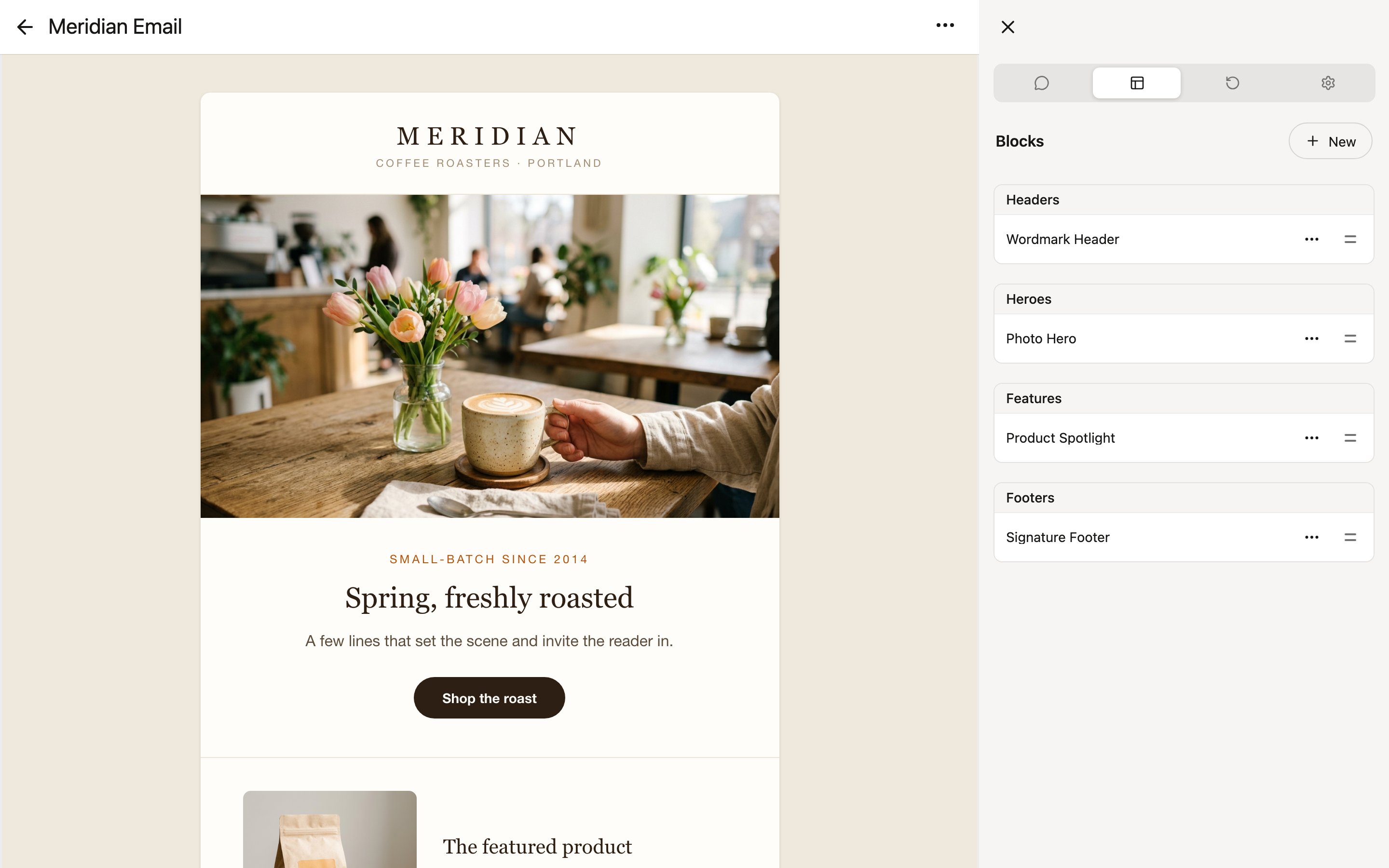 Blocks are:
* **Responsive** — they adapt to desktop and mobile screen sizes automatically.
* **Dark mode compatible** — they render correctly in email clients that support dark mode.
* **Self-contained** — each block manages its own HTML and styling, so blocks can be mixed and matched freely without conflicts.
## Parameters
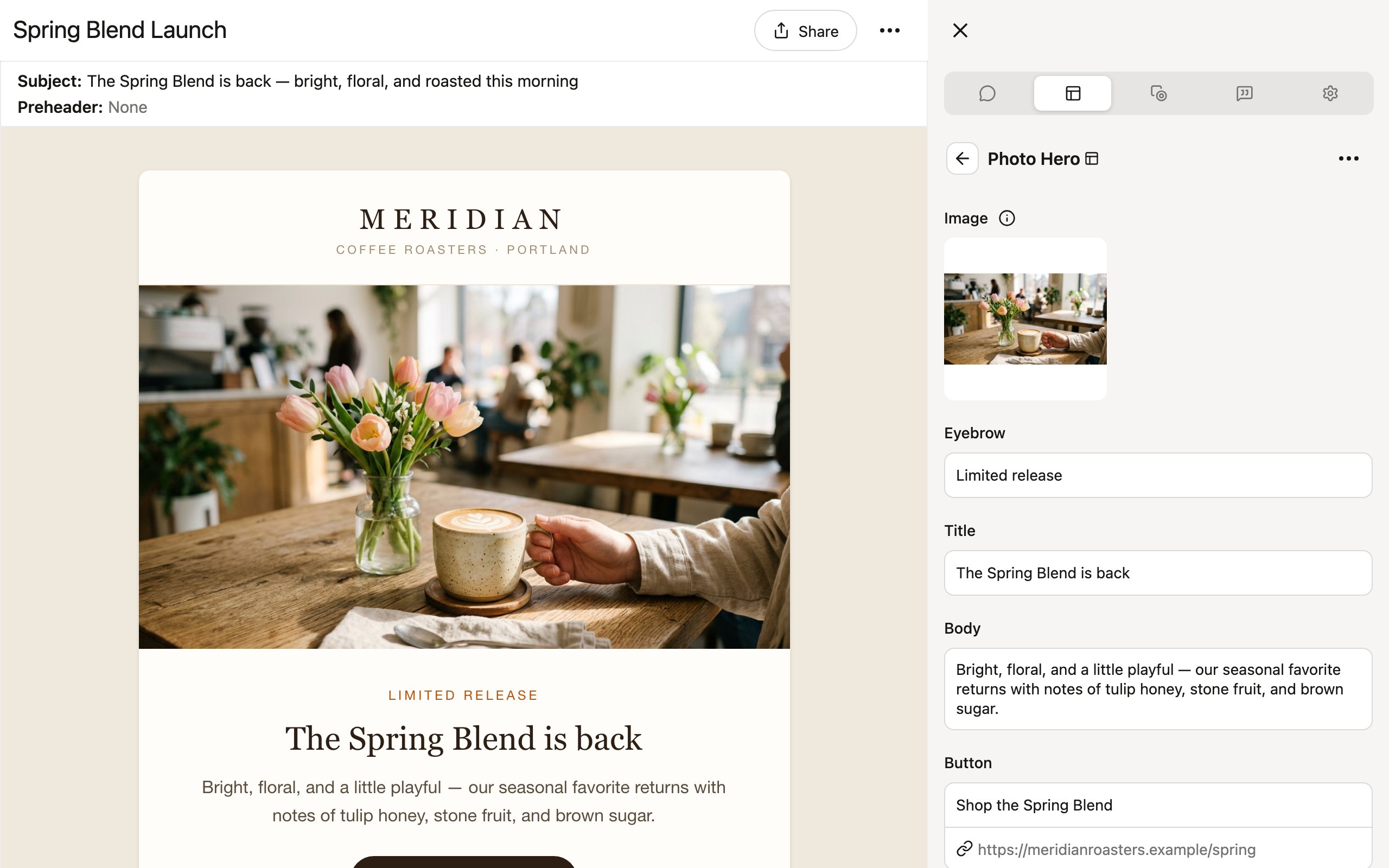
Every block exposes parameters — the specific fields that are safe to customize. Parameters are the bridge between the designer who built the block and the marketer who fills it in.
### Parameter types
| Type | Description | Example |
| ----------- | ----------------------------------------------------------------------- | ------------------------------------------ |
| **Text** | Short or long text content | Headline, body copy, button label |
| **Image** | A visual asset — from your image library, a URL, or generated by Denada | Hero photo, product thumbnail, logo |
| **Color** | A color value | Accent color, section background |
| **Boolean** | A show/hide toggle | Display disclaimer, show social links |
| **Link** | A URL | Button destination, product page link |
| **Enum** | A choice from predefined options | Layout style, alignment, number of columns |
| **Insets** | Spacing around content, adjustable per edge | Section padding |
| **List** | A repeating group of content within a block | Product rows, feature items |
Parameters are how libraries enforce brand guidelines. By choosing which fields to expose (and which to lock), the library designer controls the balance between flexibility and consistency.
### How parameters work
When a marketer creates a project, they see only the parameters — not the underlying HTML. They fill in a headline, pick an image, toggle a section on or off, and the block's HTML handles the rest. This means:
* Marketers never need to edit code.
* The design stays pixel-perfect regardless of what content is entered.
* The library designer decides exactly what can change and what cannot.
Blocks are:
* **Responsive** — they adapt to desktop and mobile screen sizes automatically.
* **Dark mode compatible** — they render correctly in email clients that support dark mode.
* **Self-contained** — each block manages its own HTML and styling, so blocks can be mixed and matched freely without conflicts.
## Parameters
Every block exposes parameters — the specific fields that are safe to customize. Parameters are the bridge between the designer who built the block and the marketer who fills it in.
### Parameter types
| Type | Description | Example |
| ----------- | ----------------------------------------------------------------------- | ------------------------------------------ |
| **Text** | Short or long text content | Headline, body copy, button label |
| **Image** | A visual asset — from your image library, a URL, or generated by Denada | Hero photo, product thumbnail, logo |
| **Color** | A color value | Accent color, section background |
| **Boolean** | A show/hide toggle | Display disclaimer, show social links |
| **Link** | A URL | Button destination, product page link |
| **Enum** | A choice from predefined options | Layout style, alignment, number of columns |
| **Insets** | Spacing around content, adjustable per edge | Section padding |
| **List** | A repeating group of content within a block | Product rows, feature items |
Parameters are how libraries enforce brand guidelines. By choosing which fields to expose (and which to lock), the library designer controls the balance between flexibility and consistency.
### How parameters work
When a marketer creates a project, they see only the parameters — not the underlying HTML. They fill in a headline, pick an image, toggle a section on or off, and the block's HTML handles the rest. This means:
* Marketers never need to edit code.
* The design stays pixel-perfect regardless of what content is entered.
* The library designer decides exactly what can change and what cannot.
 ## The shell
Beyond individual blocks, every library has a shell: the outer HTML document that wraps the assembled blocks in every rendered project. The shell owns the ``, font loading (see [Fonts](/libraries/fonts) for hosting custom web fonts), CSS resets, and the overall frame. Parameters defined at the shell level become the library's theme — shared values like a brand color that every block can reference.
## Brand guidelines through libraries
Libraries are your brand guidelines made executable. Instead of a PDF that people may or may not follow, a library is a living system that enforces your standards automatically.
A well-designed library:
* Locks down fonts, spacing, and color palettes so they cannot be accidentally changed.
* Exposes only the parameters that should vary between projects.
* Provides enough block variety to cover your team's common patterns.
* Includes sensible defaults so a new project looks good even before customization.
## Publishing libraries
Once a library is ready, turn on its **Published** toggle in the library editor's **Options** tab to make it available to your team. Published libraries appear when creating projects, and Denada can build with them in chat. Individual blocks have their own **Published** toggle too, so you can keep a work-in-progress block out of circulation while the rest of the library is live.
Building and editing libraries requires the **Libraries** permission, which team owners can grant per member in team settings. Members without it can still use published libraries to create projects.
## Versioning
Libraries support versioning so you can evolve your design system over time without breaking existing work.
* **Versions** — the library editor records checkpoint versions automatically as you work, and you can save named versions at meaningful milestones.
* **Pinned projects** — every project keeps the library version it was built with. Later changes to the library never silently alter existing projects; each project pulls in updates only when someone chooses to. See [Using libraries in projects](/libraries/using-libraries).
Deleting blocks from a library can affect future projects that would have used those blocks. If you need to retire a block, consider unpublishing it instead of removing it entirely.
## Creating libraries
Libraries can be created in several ways:
* **In the app** — create a new library and build its blocks yourself in the [library editor](/libraries/library-editor), or describe what you need in the editor's chat and let Denada build the blocks.
* **From a `.library` file** — import a library exported from another team or workspace.
* **With the Denada team** — send your existing designs and the Denada team will build a fully parameterized library for you.
Learn more in the [Creating libraries](/libraries/creating-libraries) guide.
## What to read next
* [Creating libraries](/libraries/creating-libraries) — the ways to start a new library.
* [The library editor](/libraries/library-editor) — where blocks, parameters, and versions are managed.
* [Using libraries in projects](/libraries/using-libraries) — how projects select, pin, and update libraries.
## The shell
Beyond individual blocks, every library has a shell: the outer HTML document that wraps the assembled blocks in every rendered project. The shell owns the ``, font loading (see [Fonts](/libraries/fonts) for hosting custom web fonts), CSS resets, and the overall frame. Parameters defined at the shell level become the library's theme — shared values like a brand color that every block can reference.
## Brand guidelines through libraries
Libraries are your brand guidelines made executable. Instead of a PDF that people may or may not follow, a library is a living system that enforces your standards automatically.
A well-designed library:
* Locks down fonts, spacing, and color palettes so they cannot be accidentally changed.
* Exposes only the parameters that should vary between projects.
* Provides enough block variety to cover your team's common patterns.
* Includes sensible defaults so a new project looks good even before customization.
## Publishing libraries
Once a library is ready, turn on its **Published** toggle in the library editor's **Options** tab to make it available to your team. Published libraries appear when creating projects, and Denada can build with them in chat. Individual blocks have their own **Published** toggle too, so you can keep a work-in-progress block out of circulation while the rest of the library is live.
Building and editing libraries requires the **Libraries** permission, which team owners can grant per member in team settings. Members without it can still use published libraries to create projects.
## Versioning
Libraries support versioning so you can evolve your design system over time without breaking existing work.
* **Versions** — the library editor records checkpoint versions automatically as you work, and you can save named versions at meaningful milestones.
* **Pinned projects** — every project keeps the library version it was built with. Later changes to the library never silently alter existing projects; each project pulls in updates only when someone chooses to. See [Using libraries in projects](/libraries/using-libraries).
Deleting blocks from a library can affect future projects that would have used those blocks. If you need to retire a block, consider unpublishing it instead of removing it entirely.
## Creating libraries
Libraries can be created in several ways:
* **In the app** — create a new library and build its blocks yourself in the [library editor](/libraries/library-editor), or describe what you need in the editor's chat and let Denada build the blocks.
* **From a `.library` file** — import a library exported from another team or workspace.
* **With the Denada team** — send your existing designs and the Denada team will build a fully parameterized library for you.
Learn more in the [Creating libraries](/libraries/creating-libraries) guide.
## What to read next
* [Creating libraries](/libraries/creating-libraries) — the ways to start a new library.
* [The library editor](/libraries/library-editor) — where blocks, parameters, and versions are managed.
* [Using libraries in projects](/libraries/using-libraries) — how projects select, pin, and update libraries.