> ## Documentation Index
> Fetch the complete documentation index at: https://help.heydenada.com/llms.txt
> Use this file to discover all available pages before exploring further.
# Integrations overview
> Connect Denada to your email service provider and push finished emails with one click
Denada integrates with the email service providers (ESPs) your team already uses, so you can design emails in Denada and push them directly to your ESP for sending. No copy-pasting HTML, no manual uploads — just a clean handoff from design to delivery.
## Supported platforms
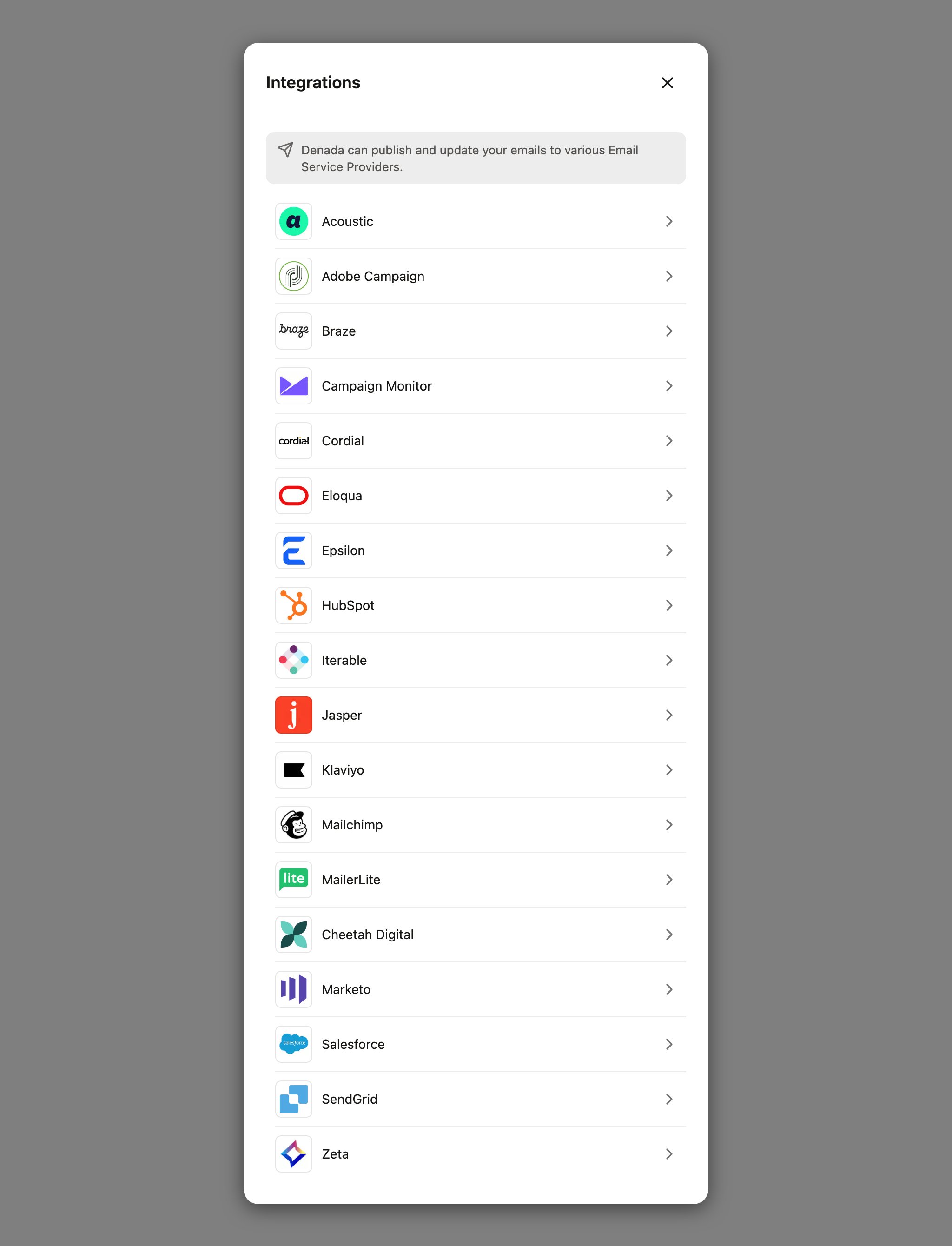
Denada supports direct integrations with the following ESPs:
| Platform | What an export creates |
| ---------------------------------------------------------- | -------------------------------------------------------------------------------------------- |
| **[Iterable](/integrations/iterable)** | An email template in your Iterable project, via Iterable's upsert API |
| **[Braze](/integrations/braze)** | An email template in Braze, with optional image hosting in the Braze media library |
| **[HubSpot](/integrations/hubspot)** | A marketing email draft in HubSpot, with optional image hosting in the HubSpot file manager |
| **[Klaviyo](/integrations/klaviyo)** | An HTML template in Klaviyo, with optional image hosting in Klaviyo |
| **[Salesforce Marketing Cloud](/integrations/salesforce)** | An email asset in a Content Builder folder, with flexible image hosting options |
| **[Campaign Monitor](/integrations/campaign-monitor)** | A draft campaign attached to the mailing lists you choose |
| **[Acoustic](/integrations/acoustic)** | A shared mailing template in Acoustic Campaign, optionally filed into a folder |
| **[Cheetah Digital](/integrations/cheetah)** | A content block in the folder you choose, with optional hosted images |
| **[Zeta](/integrations/zeta)** | A content template in the Zeta Marketing Platform, with optional Asset Library image hosting |
Two more integrations work differently from the email destinations above:
* **[Figma](/integrations/figma)** — send designs from Figma into your Denada image library, or take a finished project into Figma.
* **[Jasper](/integrations/jasper)** — an AI integration: connecting Jasper gives Denada's chat access to Jasper's tools. It is not an email export destination.
Even without an ESP integration, you can always download your finished email as HTML, a ZIP, images, a PDF, or a CSV — see [Export formats](/exporting/export-formats).
You can configure multiple integrations at the same time, including multiple configurations of the same platform. For example, if your team uses Iterable for transactional emails and Klaviyo for marketing, set up both and export to either one from the same project. Or keep separate Iterable configurations for staging and production.
## Setting up an integration
There are two ways to reach the same setup dialog:
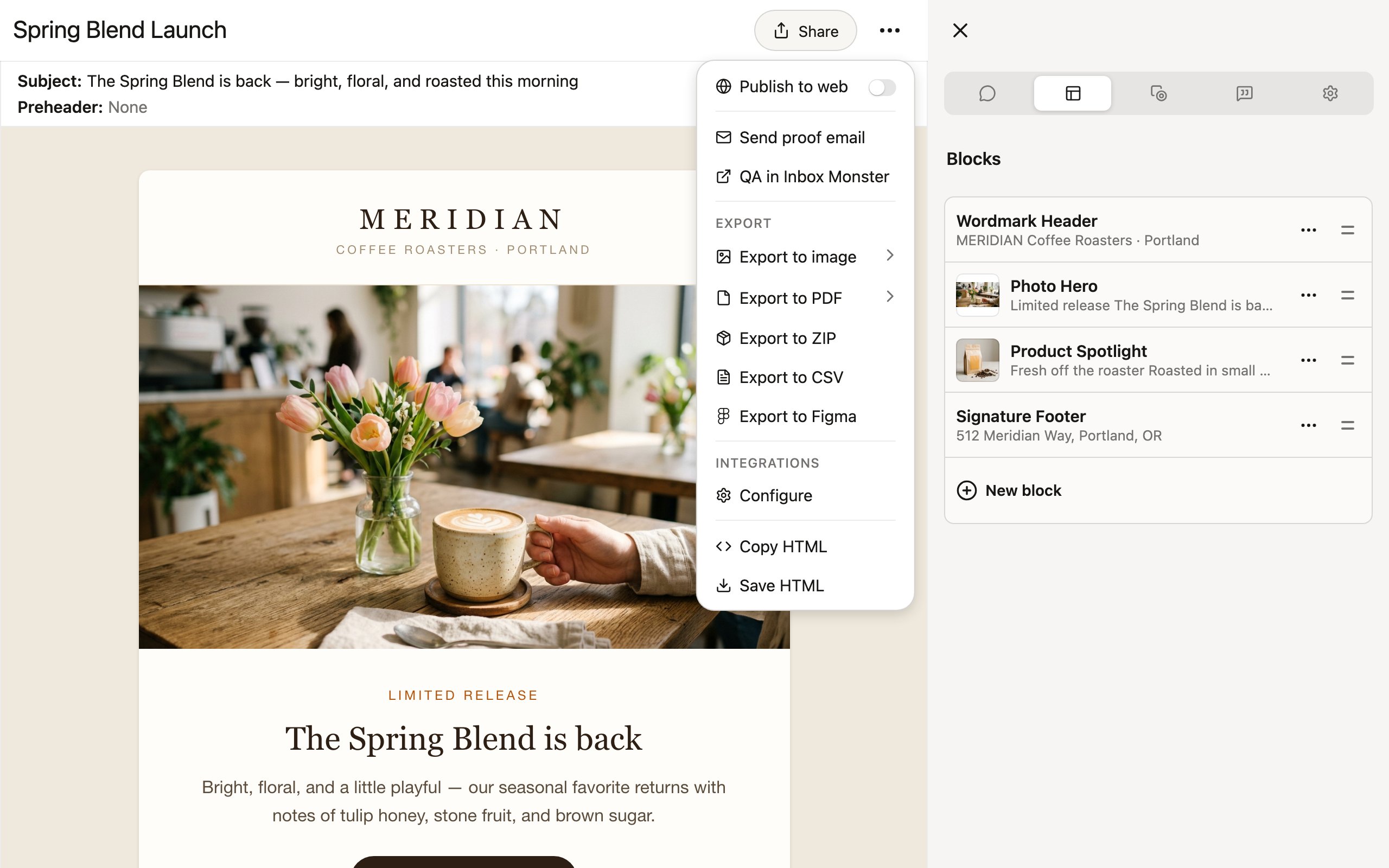
* **From any project** — click **Share**, then under **Integrations**, click **Configure**.
* **From team settings** — open your team's **Settings** page, find the **Integrations** panel, and click **Add integration**. This panel is visible to team members with the manager role or above.
In the **Integrations** dialog, pick your platform from the list. Any integrations you've already set up appear at the top under **Already setup**.
Each platform asks for its own credentials — typically an API key or token created in your ESP's settings. You can also give the configuration an optional **Name**, which is helpful if you have multiple accounts or projects on the same platform.
Click **Validate** to test the credentials against your ESP before saving. Denada makes a real API call and tells you exactly what's wrong if it fails.
Click **Save**. The integration is now available to your whole team.
 Most ESPs require a server-side or admin-level API key. Check the individual integration page for the specific key type and permissions required for your platform.
## Pushing an email to your ESP
Once an integration is configured:
1. Open the project you want to push and click **Share**.
2. Under **Integrations**, select **Export to \[platform name]**.
3. Fill in the platform's export dialog — typically a name for the email as it will appear in your ESP, plus platform-specific options like a destination folder or image hosting.
4. Click **Export**.
The export runs in the background — you can watch its progress in the tasks bell, and many platforms provide a direct link to the created asset when it finishes.
Most ESPs require a server-side or admin-level API key. Check the individual integration page for the specific key type and permissions required for your platform.
## Pushing an email to your ESP
Once an integration is configured:
1. Open the project you want to push and click **Share**.
2. Under **Integrations**, select **Export to \[platform name]**.
3. Fill in the platform's export dialog — typically a name for the email as it will appear in your ESP, plus platform-specific options like a destination folder or image hosting.
4. Click **Export**.
The export runs in the background — you can watch its progress in the tasks bell, and many platforms provide a direct link to the created asset when it finishes.
 ## How updates work
The export pipeline is designed so you can push the same project again and again without littering your ESP with duplicates:
* **Re-exporting updates the same asset.** Denada records every export, so when you export a project again, most platforms show a **Previous export** option that updates the previously created asset in place instead of creating a new one. Choose **Create new** if you'd rather keep both.
* **Name collisions are detected first.** Before creating anything, most platforms check whether an asset with your chosen name already exists in your ESP. If it does, Denada asks you to confirm before replacing it — you can also cancel and pick a different name.
* **Exports are recorded per project.** Each successful export is saved with the details of what was created, which is what powers the update-in-place behavior on your next export.
A few platforms behave differently — for example, Campaign Monitor creates a new draft campaign on every export. The individual guides call out any exceptions.
## Exporting variations to your ESP
If your project has [variations](/editor/variations), each one can be pushed to your ESP as its own deliverable. Open the variation you want to export and click **Export** — the menu shows a banner confirming which variation you're exporting, and the **Export to \[platform name]** options push just that variation.
The **Export all variations** toggle in the **Share** menu applies to bulk formats like ZIP and CSV; ESP exports are pushed one variation at a time so each can get its own name in your ESP.
## Personalization and dynamic content
If your emails use per-recipient dynamic content — merge fields, conditional blocks, block variants — make sure your library's scripting language matches your ESP (for example, Liquid for Klaviyo or Braze, Django-style for Iterable). Denada emits your ESP's control structures in the exported HTML, and your ESP resolves them for each recipient at send time. See [Personalization & dynamic content](/editor/personalization).
Some platforms treat certain characters as merge-tag syntax. Iterable, for example, interprets curly braces as Handlebars — so when exporting static HTML to Iterable, Denada escapes them. Check the individual guide for your platform if you're mixing Denada exports with ESP-side personalization tags.
## Troubleshooting
Make sure at least one integration is configured for that platform. Click **Share > Integrations > Configure** on any project to set one up.
Double-check that you're using the correct key type. Most platforms require a server-side or admin API key, not a client-side or mobile key. Refer to the specific integration page for details.
Some ESPs apply their own styling or wrapping to imported emails. Preview the email in your ESP's built-in preview tool and send a test email to verify rendering.
Check the folder or project you exported to. If you have multiple configurations for the same platform, make sure you selected the correct one. Also verify that your API key has permission to create assets.
## Need help?
If you run into issues with any integration, reach out to [support@heydenada.com](mailto:support@heydenada.com) or ask in our [Community Slack](https://join.slack.com/t/denadacommunity/shared_invite/zt-33ermqnvl-kU9677V0eloK5Jf2SSNO5g).
## How updates work
The export pipeline is designed so you can push the same project again and again without littering your ESP with duplicates:
* **Re-exporting updates the same asset.** Denada records every export, so when you export a project again, most platforms show a **Previous export** option that updates the previously created asset in place instead of creating a new one. Choose **Create new** if you'd rather keep both.
* **Name collisions are detected first.** Before creating anything, most platforms check whether an asset with your chosen name already exists in your ESP. If it does, Denada asks you to confirm before replacing it — you can also cancel and pick a different name.
* **Exports are recorded per project.** Each successful export is saved with the details of what was created, which is what powers the update-in-place behavior on your next export.
A few platforms behave differently — for example, Campaign Monitor creates a new draft campaign on every export. The individual guides call out any exceptions.
## Exporting variations to your ESP
If your project has [variations](/editor/variations), each one can be pushed to your ESP as its own deliverable. Open the variation you want to export and click **Export** — the menu shows a banner confirming which variation you're exporting, and the **Export to \[platform name]** options push just that variation.
The **Export all variations** toggle in the **Share** menu applies to bulk formats like ZIP and CSV; ESP exports are pushed one variation at a time so each can get its own name in your ESP.
## Personalization and dynamic content
If your emails use per-recipient dynamic content — merge fields, conditional blocks, block variants — make sure your library's scripting language matches your ESP (for example, Liquid for Klaviyo or Braze, Django-style for Iterable). Denada emits your ESP's control structures in the exported HTML, and your ESP resolves them for each recipient at send time. See [Personalization & dynamic content](/editor/personalization).
Some platforms treat certain characters as merge-tag syntax. Iterable, for example, interprets curly braces as Handlebars — so when exporting static HTML to Iterable, Denada escapes them. Check the individual guide for your platform if you're mixing Denada exports with ESP-side personalization tags.
## Troubleshooting
Make sure at least one integration is configured for that platform. Click **Share > Integrations > Configure** on any project to set one up.
Double-check that you're using the correct key type. Most platforms require a server-side or admin API key, not a client-side or mobile key. Refer to the specific integration page for details.
Some ESPs apply their own styling or wrapping to imported emails. Preview the email in your ESP's built-in preview tool and send a test email to verify rendering.
Check the folder or project you exported to. If you have multiple configurations for the same platform, make sure you selected the correct one. Also verify that your API key has permission to create assets.
## Need help?
If you run into issues with any integration, reach out to [support@heydenada.com](mailto:support@heydenada.com) or ask in our [Community Slack](https://join.slack.com/t/denadacommunity/shared_invite/zt-33ermqnvl-kU9677V0eloK5Jf2SSNO5g).