> ## Documentation Index
> Fetch the complete documentation index at: https://help.heydenada.com/llms.txt
> Use this file to discover all available pages before exploring further.
# Figma
> Send designs from Figma into your Denada image library, and take finished projects into Figma
Denada and Figma connect in both directions: the **Export to Denada** Figma plugin sends frames and layers from Figma straight into your team's image library, and the **Export to Figma** option in a project's **Share** menu takes your finished design the other way.
## Send designs from Figma to Denada
The **Export to Denada** plugin (available in the Figma Community) exports any selected frame or layer directly into your Denada team's image library — no downloading and re-uploading files.
### Set up the plugin
Install **Export to Denada** from the Figma Community and open it in your Figma file.
The plugin authenticates with a **team API token**. A team manager can create one on your team's **Settings** page under **API tokens** — see [API tokens](/team/api-tokens).
Paste the token into the **Denada API Token** field at the bottom of the plugin. The token is saved with the Figma document and shared with everyone editing it, so your whole design team only needs to set it up once per file.
### Export a frame or layer
1. Select a single frame or layer — the plugin shows a live preview of what will be exported.
2. Optionally adjust the export settings:
* **Name** — the name for the image in Denada; defaults to the layer's name.
* **Size** — a scale factor like `2x` (the default), or an exact width or height like `500w` or `500h`.
* **Format** — **JPG** (default), **PNG**, or **SVG**.
3. Click **Export to Denada**.
The image lands in your team's image library, where Denada automatically describes it so it's easy to find with search. The plugin's confirmation includes a **Copy Link** button that links straight to the new image in Denada. Settings are remembered per layer, so re-exporting is one click.
When you re-export the same Figma layer, Denada recognizes it and **updates the existing image** in your library rather than creating a duplicate. If nothing changed since the last export, Denada detects that too and skips the duplicate.
### Using imported images
Once in your image library, Figma exports work like any other image — you can insert them into projects, crop them, organize them into collections, and edit their metadata. Each one keeps its Figma context (document name and layer path) so you can tell where it came from. For more on managing images, see [Image library](/image-library/collections).
## Take a project into Figma
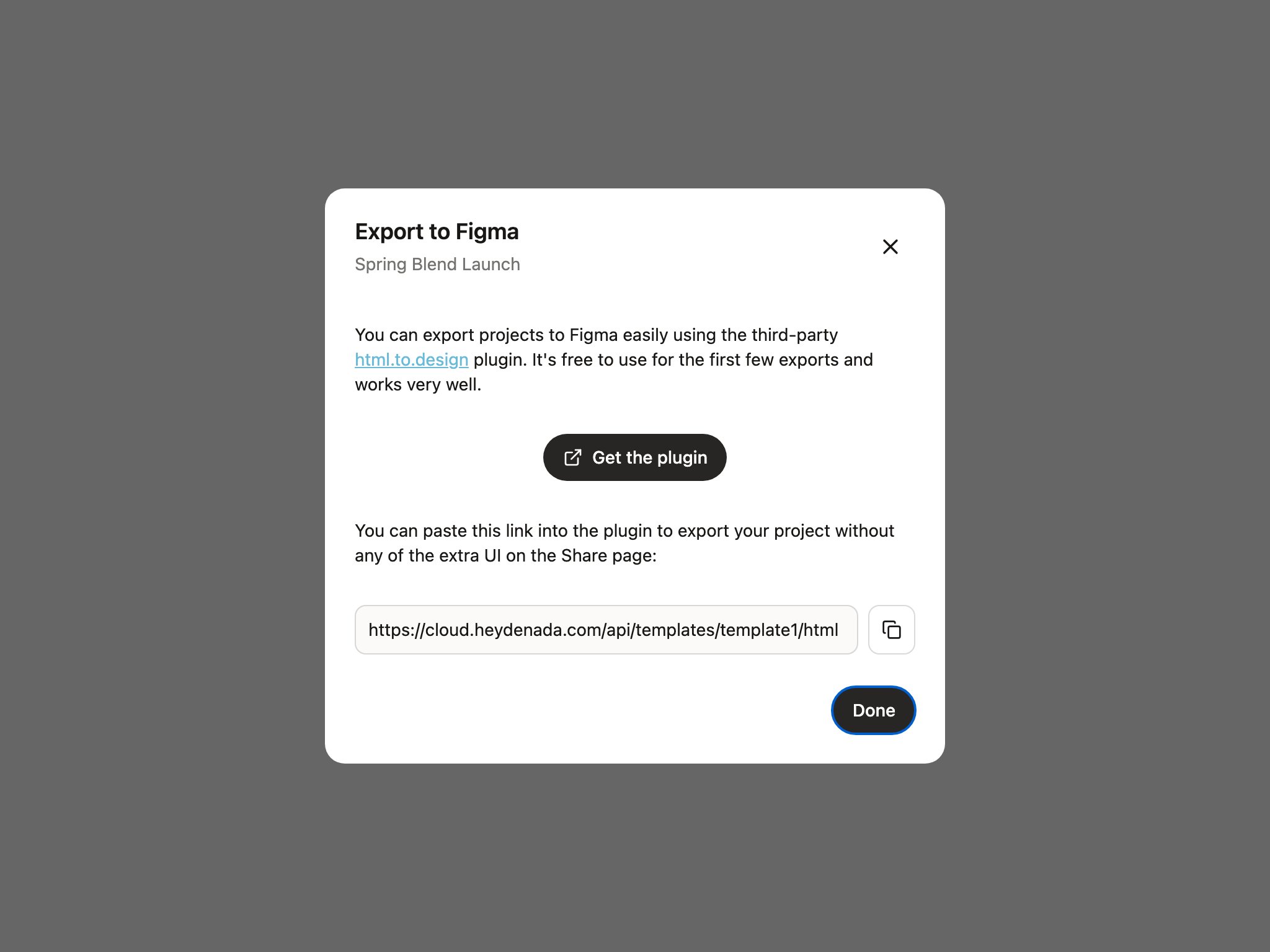
Going the other direction — say, to hand a finished email to designers for further work — Denada points you at the excellent third-party [html.to.design](https://www.figma.com/community/plugin/1159123024924461424) plugin, which imports web pages into Figma as editable layers.
1. Open the project and click **Share**.
2. Select **Export to Figma**.
3. The dialog links you to the plugin (**Get the plugin**) and gives you a clean, copyable link to your project's rendered HTML — paste that link into html.to.design inside Figma to import the design without any of the surrounding Denada UI.
 html.to.design is free for the first few imports and works very well, but it's a third-party plugin — pricing and behavior are up to its developers.
## Need help?
If you run into issues with the Figma integration, reach out to [support@heydenada.com](mailto:support@heydenada.com) or ask in our [Community Slack](https://join.slack.com/t/denadacommunity/shared_invite/zt-33ermqnvl-kU9677V0eloK5Jf2SSNO5g).
html.to.design is free for the first few imports and works very well, but it's a third-party plugin — pricing and behavior are up to its developers.
## Need help?
If you run into issues with the Figma integration, reach out to [support@heydenada.com](mailto:support@heydenada.com) or ask in our [Community Slack](https://join.slack.com/t/denadacommunity/shared_invite/zt-33ermqnvl-kU9677V0eloK5Jf2SSNO5g).