> ## Documentation Index
> Fetch the complete documentation index at: https://help.heydenada.com/llms.txt
> Use this file to discover all available pages before exploring further.
# Publishing to the web
> Publish projects, folders, and canvases to public links anyone can view
Every project can be published to the web with a single toggle. Publishing creates a public link that anyone can open — no Denada account required — which makes it the fastest way to get your work in front of clients, stakeholders, and reviewers.
## Publishing a project
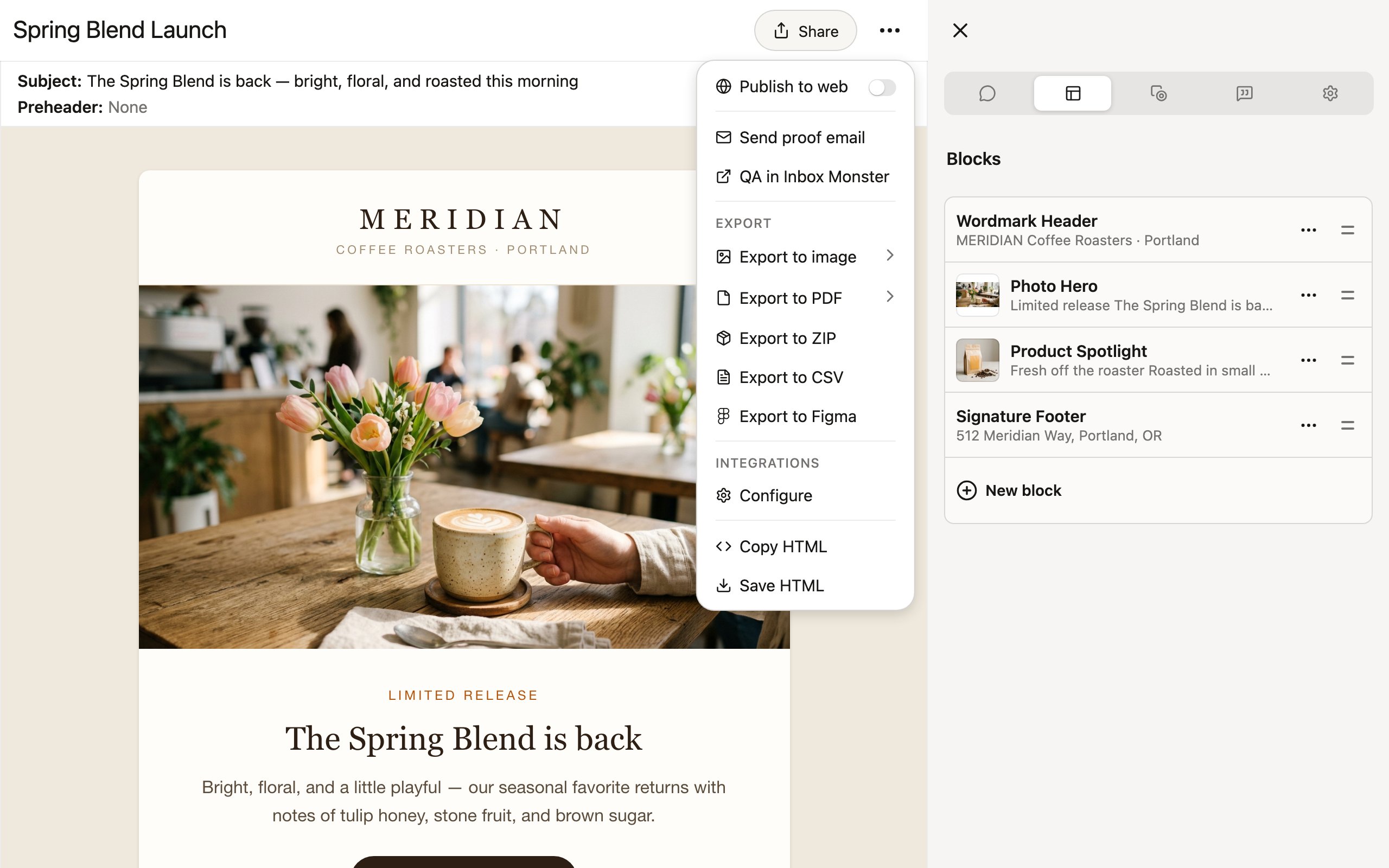
1. Open your project and click **Share** in the toolbar.
2. Toggle on **Publish to web**.
3. Two options appear below the toggle: **View on web** opens the published page in a new tab, and **Copy link** copies the public URL to your clipboard.
 Send the link through email, Slack, or any other channel — it works immediately.
Anyone with the link can view the published page. To take it down, toggle **Publish to web** off; anyone visiting the old link will no longer see your project.
## What viewers see
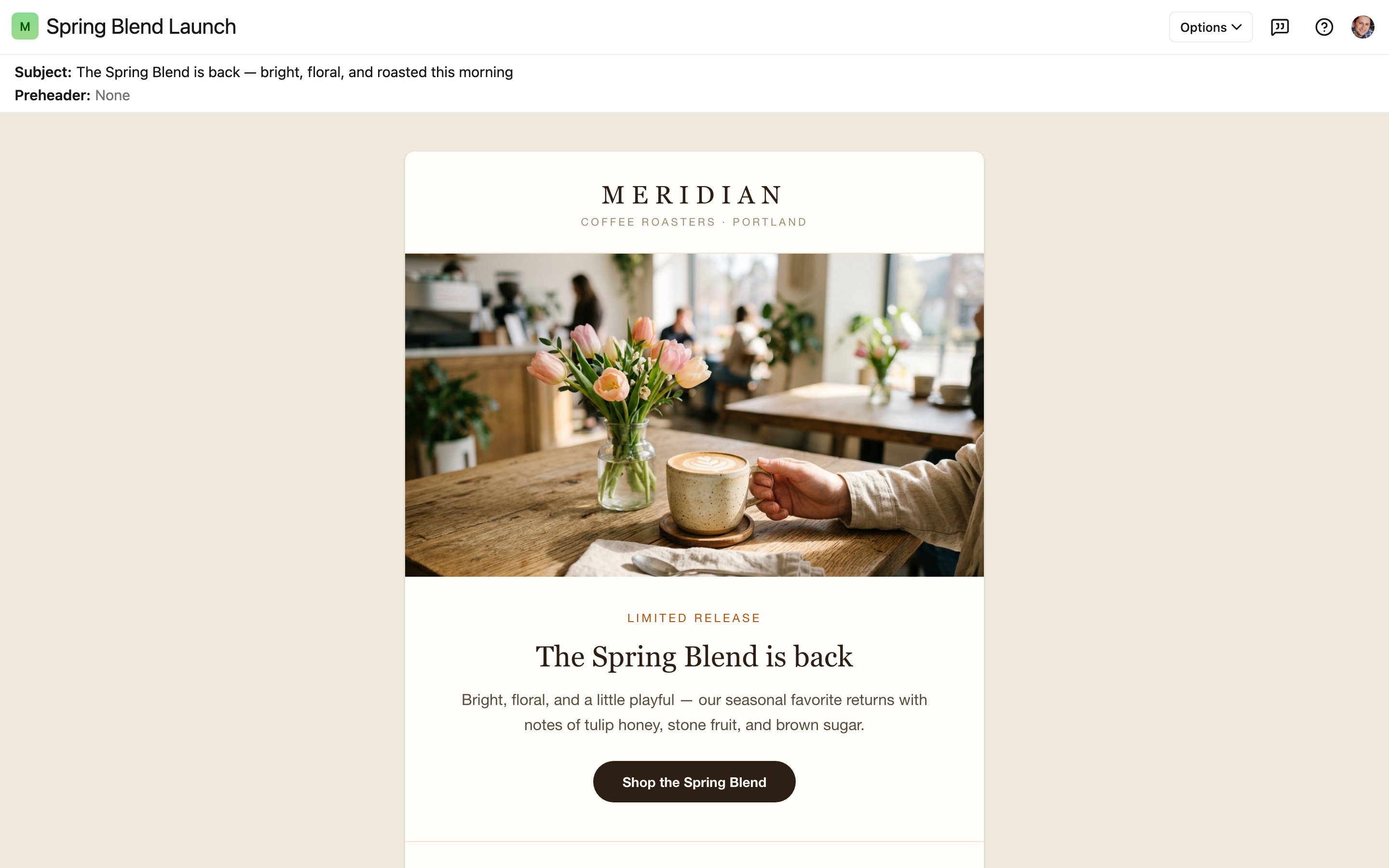
Visitors to a published page see a read-only, fully rendered version of your project, with the project's name in the header. Email projects show the subject line and preheader above the rendered email. Viewers don't need to log in, and they can't edit anything or see the rest of your workspace.
Send the link through email, Slack, or any other channel — it works immediately.
Anyone with the link can view the published page. To take it down, toggle **Publish to web** off; anyone visiting the old link will no longer see your project.
## What viewers see
Visitors to a published page see a read-only, fully rendered version of your project, with the project's name in the header. Email projects show the subject line and preheader above the rendered email. Viewers don't need to log in, and they can't edit anything or see the rest of your workspace.
 ### Reviewing variations
If your project has [variations](/editor/variations), the published page includes an **Options** menu listing **Main** along with each variation by name. Reviewers can flip between them to compare — a lightweight way to collect feedback on an entire campaign from a single link.
### Checking layouts and the fold
The **Options** menu also offers **Copy HTML**, plus the same preview tools as the editor: a **Preview layout** picker for checking the project at desktop, tablet, and mobile widths (Cmd+Shift+F cycles them), a **Color scheme** picker, and the [**Above the fold**](/editor/editor-interface#above-the-fold) toggle (Ctrl+F). For email projects, the fold guides include markers showing where popular clients would truncate the subject line and preheader — useful when reviewers want to sanity-check copy length without any extra tools.
### Public comments
Viewers can leave comments directly on the published page. These comments are public — they're visible to other viewers of the page and to your whole team inside the editor's comments sidebar, where you can reply and resolve them. Just like in the editor, comments can be attached to a specific block by clicking it, and for email projects, clicking the subject and preheader header attaches feedback to the **Subject & preheader**. See [comments and collaboration](/editor/comments-and-collaboration).
Comments on published pages are available on the Team plan.
## Viewing on your custom domain
If your team has an active [custom domain](/team/custom-domains), the Share menu gains a section headed by your domain with two extra items:
* **View on custom domain** — opens the published project on your own domain.
* **Copy custom domain link** — copies the custom domain URL.
This lets you share links that carry your brand instead of a Denada URL.
## Sharing folders
You can publish an entire [folder](/organizing/folders) of projects with one link — handy for sending a whole campaign to a reviewer at once.
1. Click the share button on the folder's row.
2. Toggle on **Publish to web**.
3. Use **View on web** or **Copy link** to grab the public URL.
Anyone with the link can browse the folder and view the published projects inside it. Note that each project still has its own **Publish to web** toggle — only published projects are visible to folder viewers.
## Sharing canvases
[Canvases](/organizing/canvases) publish the same way: click **Share** on the canvas, toggle on **Publish to web**, then **Copy link**. Viewers get a read-only view of the canvas layout.
As with folders, the projects on a canvas must themselves be published for visitors to see them. If a published canvas contains unpublished projects, the canvas editor shows a warning with a one-click **Publish all projects** action.
## Best practices
* **Use published links for review cycles.** They're the fastest way to get external feedback without onboarding reviewers into Denada.
* **Publish folders for campaigns.** One link for an entire campaign is easier to manage than individual project links.
* **Check comments regularly.** Reviewer comments appear in the editor as soon as they're posted.
* **Unpublish when done.** Toggle off **Publish to web** after the review cycle to keep your work private.
### Reviewing variations
If your project has [variations](/editor/variations), the published page includes an **Options** menu listing **Main** along with each variation by name. Reviewers can flip between them to compare — a lightweight way to collect feedback on an entire campaign from a single link.
### Checking layouts and the fold
The **Options** menu also offers **Copy HTML**, plus the same preview tools as the editor: a **Preview layout** picker for checking the project at desktop, tablet, and mobile widths (Cmd+Shift+F cycles them), a **Color scheme** picker, and the [**Above the fold**](/editor/editor-interface#above-the-fold) toggle (Ctrl+F). For email projects, the fold guides include markers showing where popular clients would truncate the subject line and preheader — useful when reviewers want to sanity-check copy length without any extra tools.
### Public comments
Viewers can leave comments directly on the published page. These comments are public — they're visible to other viewers of the page and to your whole team inside the editor's comments sidebar, where you can reply and resolve them. Just like in the editor, comments can be attached to a specific block by clicking it, and for email projects, clicking the subject and preheader header attaches feedback to the **Subject & preheader**. See [comments and collaboration](/editor/comments-and-collaboration).
Comments on published pages are available on the Team plan.
## Viewing on your custom domain
If your team has an active [custom domain](/team/custom-domains), the Share menu gains a section headed by your domain with two extra items:
* **View on custom domain** — opens the published project on your own domain.
* **Copy custom domain link** — copies the custom domain URL.
This lets you share links that carry your brand instead of a Denada URL.
## Sharing folders
You can publish an entire [folder](/organizing/folders) of projects with one link — handy for sending a whole campaign to a reviewer at once.
1. Click the share button on the folder's row.
2. Toggle on **Publish to web**.
3. Use **View on web** or **Copy link** to grab the public URL.
Anyone with the link can browse the folder and view the published projects inside it. Note that each project still has its own **Publish to web** toggle — only published projects are visible to folder viewers.
## Sharing canvases
[Canvases](/organizing/canvases) publish the same way: click **Share** on the canvas, toggle on **Publish to web**, then **Copy link**. Viewers get a read-only view of the canvas layout.
As with folders, the projects on a canvas must themselves be published for visitors to see them. If a published canvas contains unpublished projects, the canvas editor shows a warning with a one-click **Publish all projects** action.
## Best practices
* **Use published links for review cycles.** They're the fastest way to get external feedback without onboarding reviewers into Denada.
* **Publish folders for campaigns.** One link for an entire campaign is easier to manage than individual project links.
* **Check comments regularly.** Reviewer comments appear in the editor as soon as they're posted.
* **Unpublish when done.** Toggle off **Publish to web** after the review cycle to keep your work private.