> ## Documentation Index
> Fetch the complete documentation index at: https://help.heydenada.com/llms.txt
> Use this file to discover all available pages before exploring further.
# Version history
> Track changes, save versions, and restore previous versions of your projects
Denada automatically tracks changes to your projects so you can review what changed and roll back to a previous state if needed.
Version history is available on the Team plan.
## Accessing version history
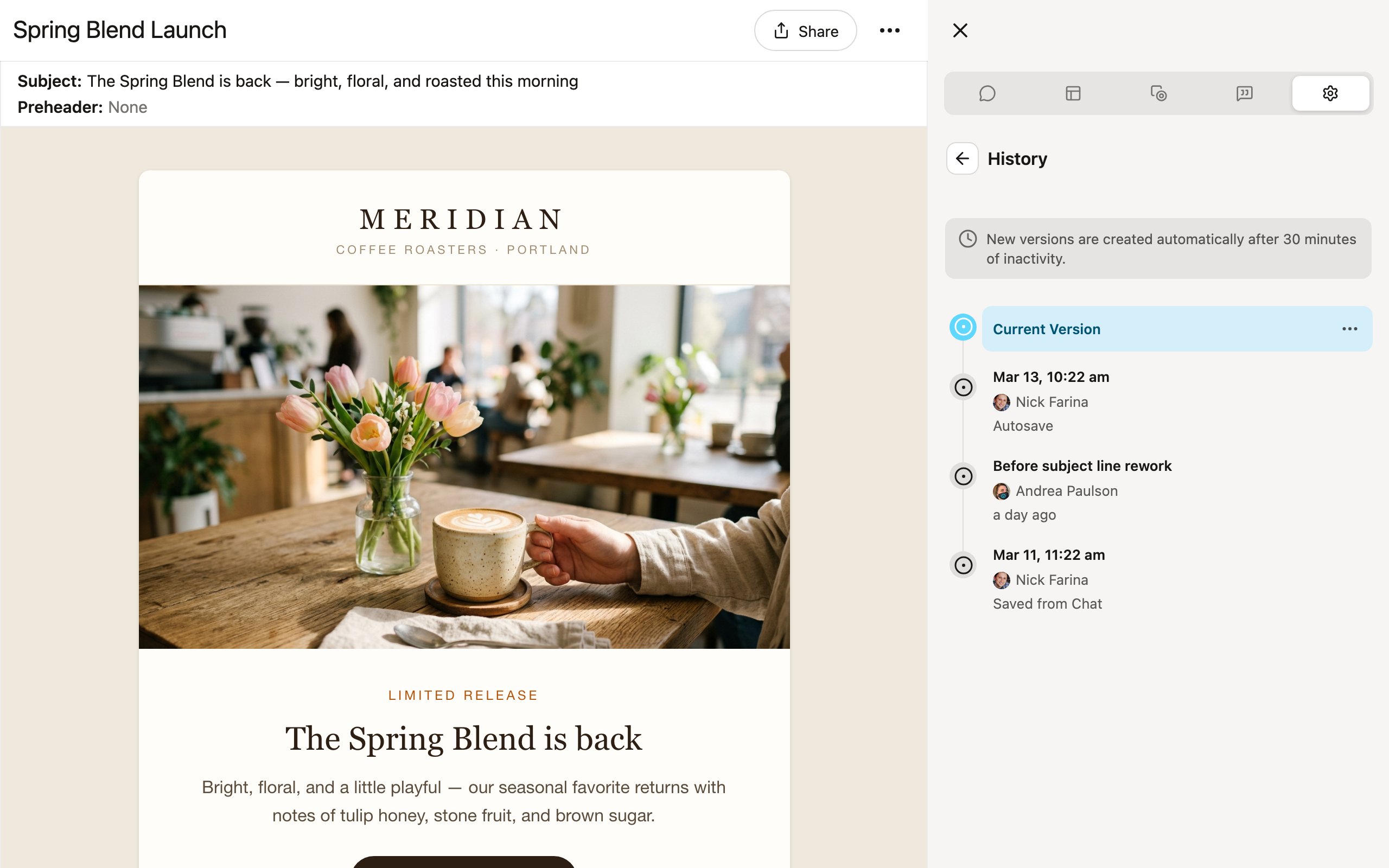
Switch to the **Options** tab in the right sidebar (Ctrl+5) and click **View history** under the **Versions** heading. This opens the **History** panel — a timeline with **Current Version** at the top, followed by every saved version with its name or timestamp and the teammates who contributed to it.
 ## Automatic versions
Denada saves new versions automatically to protect your work without you having to think about it. A new version is created after about 30 minutes of inactivity since your last edit, so every meaningful state of your project is preserved as you work. Versions are also saved at notable moments — when you save from chat, accept suggested changes, duplicate a project, or generate a variation — and labeled accordingly.
## Saving a version manually
You can save a version at any time: click the **⋯** menu on the **Current Version** row and choose **Save current version**. You can give it a name or leave it blank. Manual versions are useful when you want to mark a specific milestone -- for example, before making a large change or after receiving stakeholder approval.
Save a version before making significant edits. It gives you a clean restore point if things do not work out.
## Renaming a version
Double-click a version in the list (or choose **Rename version** from its **⋯** menu) to give it a meaningful name like "Approved by client."
## Viewing previous versions
Click on any version in the list to preview it. The editor shows the project as it looked at that point in time so you can compare it to the current state.
## Restoring a version
To restore a previous version:
1. Click the **⋯** menu on the version you want.
2. Choose **Restore this version**.
3. Optionally name the restored version, and confirm.
The project reverts to the selected version. Your current state is not lost -- it remains in the history as a version you can restore later if needed.
You can also spin off a copy instead of rolling back: choose **New project from this version** to create a separate project from that point in time.
Restoring a version replaces the current project state. Make sure to preview the version before confirming.
## Undo and redo
Within your current editing session, you can use standard undo and redo shortcuts for quick corrections:
* **Undo:** Cmd+Z (Mac) or Ctrl+Z (Windows/Linux)
* **Redo:** Cmd+Shift+Z (Mac) or Ctrl+Y (Windows/Linux)
Undo and redo work for individual parameter changes, block additions, block deletions, and reordering. These are session-level actions -- they reset when you close the editor or navigate away.
Undo/redo and version history work together. Undo handles small, immediate corrections. Version history handles larger rollbacks across editing sessions.
## Best practices
* **Let automatic versions do their job.** You do not need to manually save constantly -- Denada has you covered.
* **Save versions at milestones.** Mark important states like "approved by client" or "before redesign" so they are easy to find later.
* **Preview before restoring.** Always review a version before restoring to make sure it is the one you want.
## Automatic versions
Denada saves new versions automatically to protect your work without you having to think about it. A new version is created after about 30 minutes of inactivity since your last edit, so every meaningful state of your project is preserved as you work. Versions are also saved at notable moments — when you save from chat, accept suggested changes, duplicate a project, or generate a variation — and labeled accordingly.
## Saving a version manually
You can save a version at any time: click the **⋯** menu on the **Current Version** row and choose **Save current version**. You can give it a name or leave it blank. Manual versions are useful when you want to mark a specific milestone -- for example, before making a large change or after receiving stakeholder approval.
Save a version before making significant edits. It gives you a clean restore point if things do not work out.
## Renaming a version
Double-click a version in the list (or choose **Rename version** from its **⋯** menu) to give it a meaningful name like "Approved by client."
## Viewing previous versions
Click on any version in the list to preview it. The editor shows the project as it looked at that point in time so you can compare it to the current state.
## Restoring a version
To restore a previous version:
1. Click the **⋯** menu on the version you want.
2. Choose **Restore this version**.
3. Optionally name the restored version, and confirm.
The project reverts to the selected version. Your current state is not lost -- it remains in the history as a version you can restore later if needed.
You can also spin off a copy instead of rolling back: choose **New project from this version** to create a separate project from that point in time.
Restoring a version replaces the current project state. Make sure to preview the version before confirming.
## Undo and redo
Within your current editing session, you can use standard undo and redo shortcuts for quick corrections:
* **Undo:** Cmd+Z (Mac) or Ctrl+Z (Windows/Linux)
* **Redo:** Cmd+Shift+Z (Mac) or Ctrl+Y (Windows/Linux)
Undo and redo work for individual parameter changes, block additions, block deletions, and reordering. These are session-level actions -- they reset when you close the editor or navigate away.
Undo/redo and version history work together. Undo handles small, immediate corrections. Version history handles larger rollbacks across editing sessions.
## Best practices
* **Let automatic versions do their job.** You do not need to manually save constantly -- Denada has you covered.
* **Save versions at milestones.** Mark important states like "approved by client" or "before redesign" so they are easy to find later.
* **Preview before restoring.** Always review a version before restoring to make sure it is the one you want.