> ## Documentation Index
> Fetch the complete documentation index at: https://help.heydenada.com/llms.txt
> Use this file to discover all available pages before exploring further.
# Project statuses
> Track where each project is in your team's workflow, from draft through review to approved
Every project can carry a status — a colored label like **Draft**, **In review**, or **Approved** — so your whole team can see where it stands in your workflow at a glance. Statuses show up next to projects in the Projects list, and moving a project to a new status notifies the people following it.
Project statuses are part of commenting and approvals, which are available on the Team plan.
## Setting a project's status
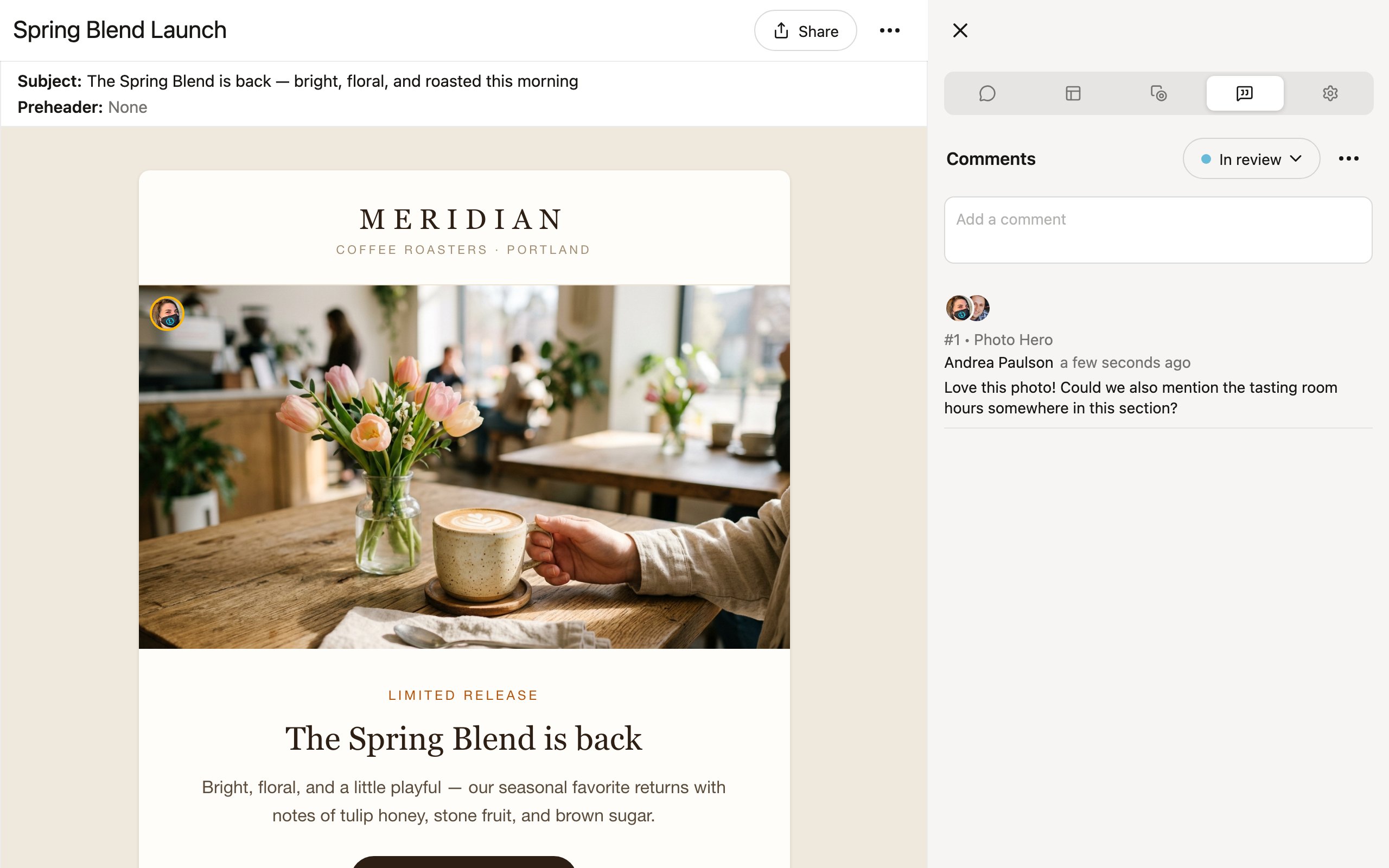
The status picker lives in the **Comments** tab of the editor sidebar, next to the Comments heading:
1. Open the project and switch to the **Comments** tab (Ctrl+4).
2. Click the status button — it shows the current status, or **Set status** if there isn't one yet.
3. Pick a status from the menu, or **No status** to clear it.
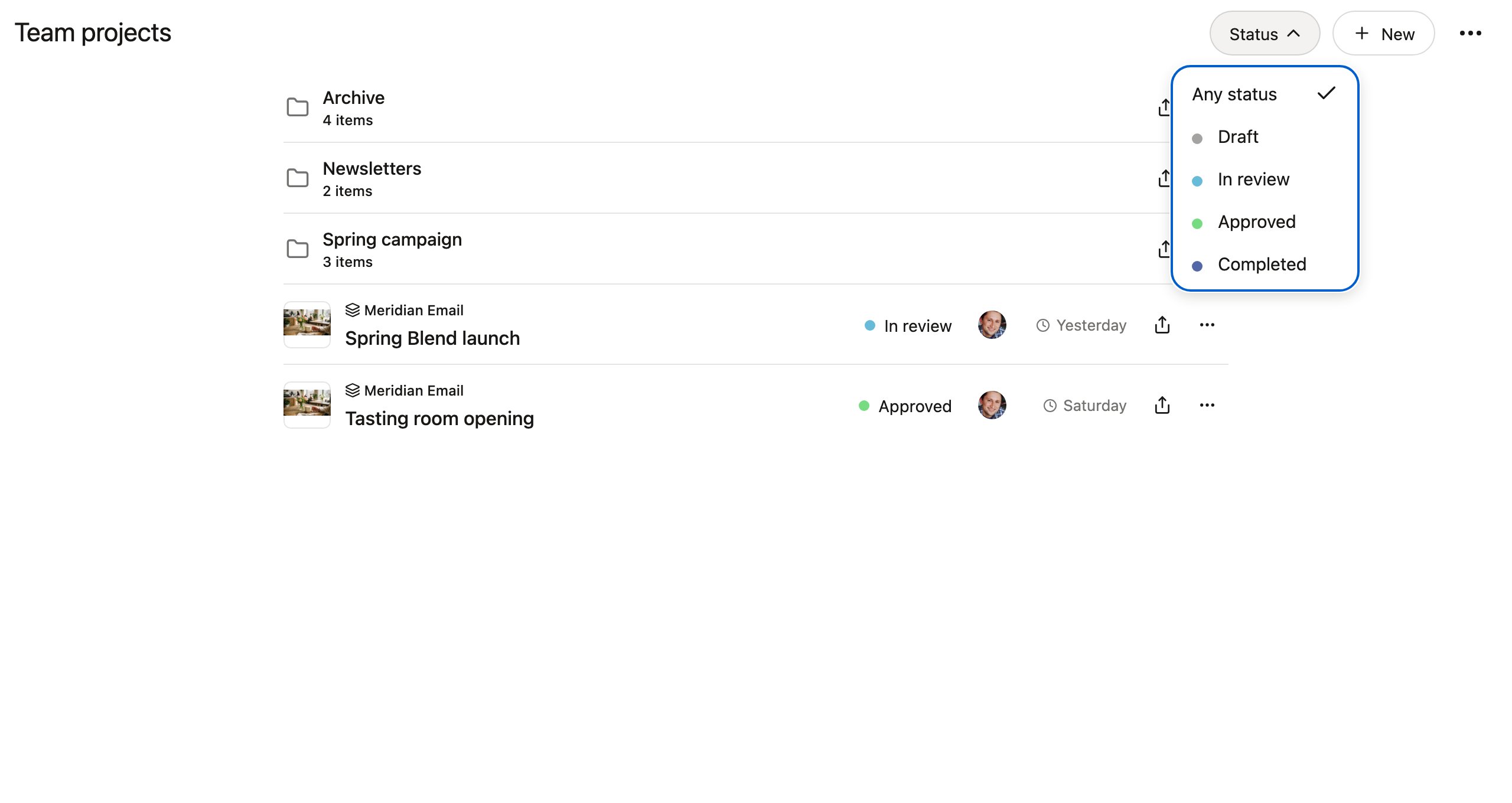
The project's status appears as a colored pill on its row in the Projects list, so the whole team sees it without opening the project.
 Teams start with three statuses: **Draft**, **In review**, and **Approved**. Managers can customize the list — see [Customizing statuses](#customizing-statuses) below.
## Filtering projects by status
On the **Projects** page (with the **Team** filter selected), the **Status** button in the header filters the list to a single status. The filtered view shows every matching project across all of your [folders](/organizing/folders) in one flat list — handy for questions like "what's still in review this week?" Choose **Any status** to return to normal browsing.
Teams start with three statuses: **Draft**, **In review**, and **Approved**. Managers can customize the list — see [Customizing statuses](#customizing-statuses) below.
## Filtering projects by status
On the **Projects** page (with the **Team** filter selected), the **Status** button in the header filters the list to a single status. The filtered view shows every matching project across all of your [folders](/organizing/folders) in one flat list — handy for questions like "what's still in review this week?" Choose **Any status** to return to normal browsing.
 ## Customizing statuses
Statuses are defined per team. On the **Settings** page, managers and owners will find the **Project statuses** panel:
## Customizing statuses
Statuses are defined per team. On the **Settings** page, managers and owners will find the **Project statuses** panel:
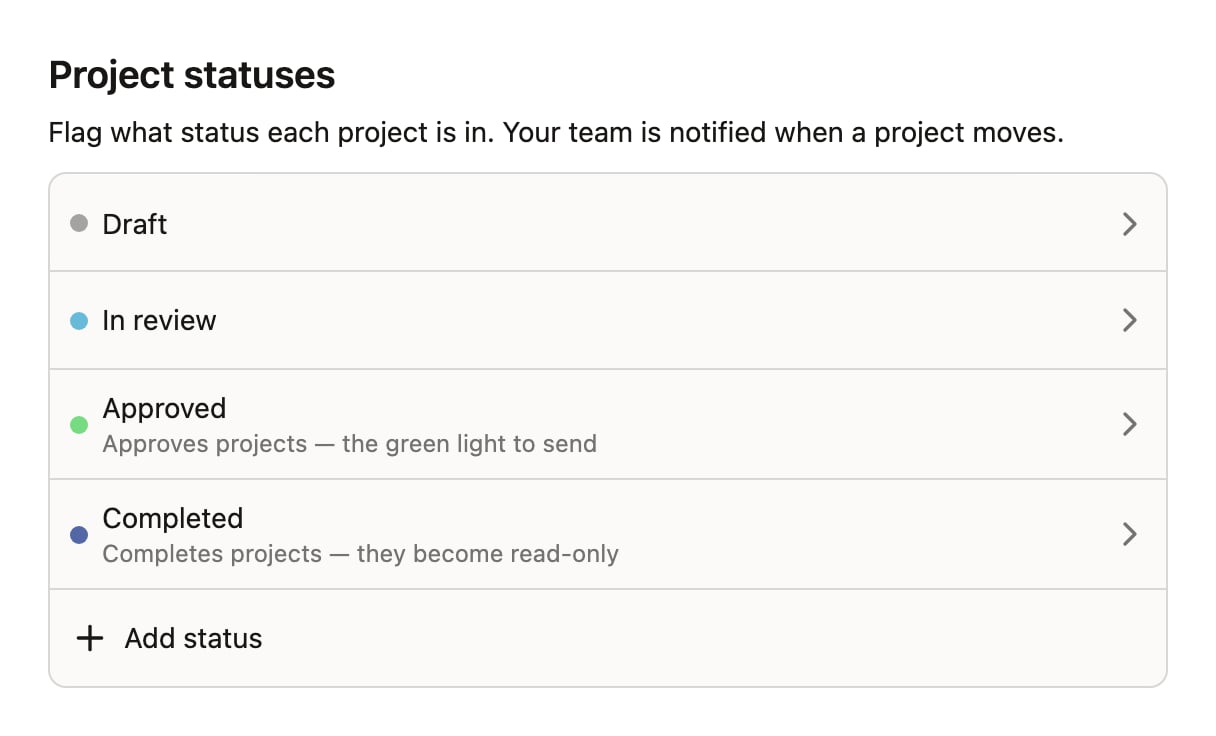 * **Add status** creates a new one — GoPro-style workflows like CRM build → In design → Stakeholder review → Completed are a few clicks away.
* Click a status to **Rename** it, change its color, reorder it with **Move up** / **Move down**, or **Delete** it.
Projects already in a deleted status keep their label until someone moves them; the status just isn't offered anymore.
## Approved and completed
Two special markers give statuses meaning beyond their label. Each can be assigned to at most one status in the list:
* **Marks projects approved** — the green light to send. This is a signal only: the project stays fully editable, so QA fixes after approval are no problem. The default **Approved** status carries this marker.
* **Marks projects completed** — the project is done. Moving a project into this status makes it **read-only** until it's moved to another status (Denada asks you to confirm first). Nobody — including [connected AI agents](/agents/overview) — can edit a completed project.
No default status marks projects completed; add one (most teams call it **Completed** or **Archived**) when you want the read-only ceremony.
## Who gets notified
When someone moves a project to a new status, Denada notifies the people following that project through the notifications bell:
* **The project's owner** — always, unless they've changed their notification level for the project.
* **Anyone whose notification level for the project is "Everything"** — set it from the **⋯** menu in the Comments tab. People who have posted a couple of comments on a project are treated as following it and get these too.
The person who made the change is never notified of their own action, and clearing a status to **No status** is silent. Notifications show the transition (for example, "In review → Approved") and repeated moves on the same project fold into a single row in the bell.
* **Add status** creates a new one — GoPro-style workflows like CRM build → In design → Stakeholder review → Completed are a few clicks away.
* Click a status to **Rename** it, change its color, reorder it with **Move up** / **Move down**, or **Delete** it.
Projects already in a deleted status keep their label until someone moves them; the status just isn't offered anymore.
## Approved and completed
Two special markers give statuses meaning beyond their label. Each can be assigned to at most one status in the list:
* **Marks projects approved** — the green light to send. This is a signal only: the project stays fully editable, so QA fixes after approval are no problem. The default **Approved** status carries this marker.
* **Marks projects completed** — the project is done. Moving a project into this status makes it **read-only** until it's moved to another status (Denada asks you to confirm first). Nobody — including [connected AI agents](/agents/overview) — can edit a completed project.
No default status marks projects completed; add one (most teams call it **Completed** or **Archived**) when you want the read-only ceremony.
## Who gets notified
When someone moves a project to a new status, Denada notifies the people following that project through the notifications bell:
* **The project's owner** — always, unless they've changed their notification level for the project.
* **Anyone whose notification level for the project is "Everything"** — set it from the **⋯** menu in the Comments tab. People who have posted a couple of comments on a project are treated as following it and get these too.
The person who made the change is never notified of their own action, and clearing a status to **No status** is silent. Notifications show the transition (for example, "In review → Approved") and repeated moves on the same project fold into a single row in the bell.