> ## Documentation Index
> Fetch the complete documentation index at: https://help.heydenada.com/llms.txt
> Use this file to discover all available pages before exploring further.
# Interface overview
> A tour of the Denada app: the sidebar, the project view, search, and teams
Denada is organized around a single left sidebar for navigating your team's content, and a project view where you create and refine each email or landing page. This page is a tour of the app itself — for the concepts behind projects, libraries, and blocks, see [How Denada works](/concepts/how-denada-works).
Everything is 100% mobile friendly too, so you can do all of this from your phone.
## The sidebar
The left sidebar is your main navigation hub:
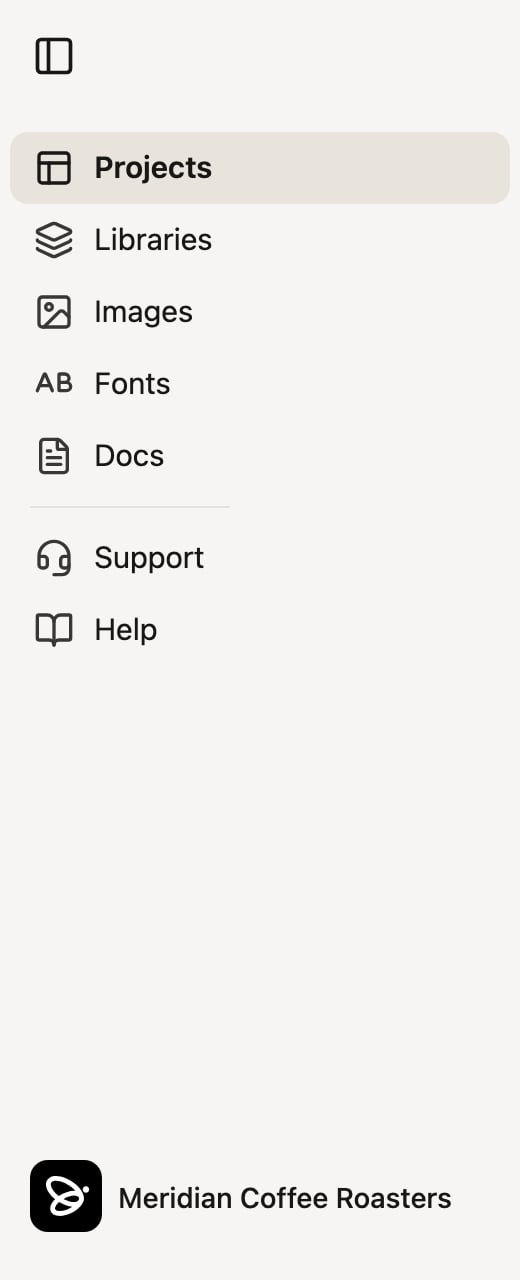 * **Projects** -- browse and organize your team's projects.
* **Libraries** -- view your team's design libraries. This section appears only if you have library permissions on your team.
* **Images** -- your team's [image library](/image-library/collections).
* **Fonts** -- [host custom web fonts](/libraries/fonts) for your libraries (also permission-gated, like Libraries).
* **Docs** -- reference documents like brand guidelines that Denada can read while it works.
* **Support** -- chat directly with the Denada support team.
* **Help** -- opens this help site in a new tab.
At the bottom of the sidebar, your team name opens a menu with **Team settings**, **Invite members**, and a **Switch Teams** list. On demo plans, a **Demo usage** meter also appears above it showing how much of your trial usage remains.
On the Team plan, the **Projects** section gains **Mine**, **Team**, and **Private** filters so you can separate your own work, shared team work, and private drafts. The **Images** section similarly lists your image collections.
## Search
Click the search button at the top of the sidebar — or press **Cmd+K** (**Ctrl+K** on Windows) from anywhere — to open a search dialog that jumps straight to projects, folders, images, chats, comments, and canvases across your team.
## The project view
Inside a project, the preview and the editing tools live side by side:
* **Left side** -- the live preview of your email or landing page. For emails, the subject line appears above the preview, and you can switch between desktop and mobile widths. The **Share** button in the toolbar handles publishing and exporting.
* **Right side** -- a sidebar with tabs: **Chat**, **Edit**, **Variations**, **Comments**, and **Options**. Use **Chat** to work conversationally with Denada, **Edit** for direct control over blocks and parameters, and **Options** for project settings and version history.
You can move between the tabs freely — chat with Denada, then fine-tune the result by hand, then chat some more. Everything stays in sync.
[Learn more about the chat interface](/creating/chat-interface)
[Learn more about the editor interface](/editor/editor-interface)
## Teams
Everything in Denada lives inside a team. A team can be a whole marketing department or just you — projects, images, libraries, and docs are all scoped to the team you're currently viewing. If you belong to more than one team, switch between them from the team menu at the bottom of the sidebar.
[Learn more about team management](/team/team-management)
## Appearance
Denada follows your device's appearance setting automatically — if your system is in dark mode, so is Denada.
This overview is a high-level look at the app. Each area has more advanced
capabilities covered in its dedicated documentation.
* **Projects** -- browse and organize your team's projects.
* **Libraries** -- view your team's design libraries. This section appears only if you have library permissions on your team.
* **Images** -- your team's [image library](/image-library/collections).
* **Fonts** -- [host custom web fonts](/libraries/fonts) for your libraries (also permission-gated, like Libraries).
* **Docs** -- reference documents like brand guidelines that Denada can read while it works.
* **Support** -- chat directly with the Denada support team.
* **Help** -- opens this help site in a new tab.
At the bottom of the sidebar, your team name opens a menu with **Team settings**, **Invite members**, and a **Switch Teams** list. On demo plans, a **Demo usage** meter also appears above it showing how much of your trial usage remains.
On the Team plan, the **Projects** section gains **Mine**, **Team**, and **Private** filters so you can separate your own work, shared team work, and private drafts. The **Images** section similarly lists your image collections.
## Search
Click the search button at the top of the sidebar — or press **Cmd+K** (**Ctrl+K** on Windows) from anywhere — to open a search dialog that jumps straight to projects, folders, images, chats, comments, and canvases across your team.
## The project view
Inside a project, the preview and the editing tools live side by side:
* **Left side** -- the live preview of your email or landing page. For emails, the subject line appears above the preview, and you can switch between desktop and mobile widths. The **Share** button in the toolbar handles publishing and exporting.
* **Right side** -- a sidebar with tabs: **Chat**, **Edit**, **Variations**, **Comments**, and **Options**. Use **Chat** to work conversationally with Denada, **Edit** for direct control over blocks and parameters, and **Options** for project settings and version history.
You can move between the tabs freely — chat with Denada, then fine-tune the result by hand, then chat some more. Everything stays in sync.
[Learn more about the chat interface](/creating/chat-interface)
[Learn more about the editor interface](/editor/editor-interface)
## Teams
Everything in Denada lives inside a team. A team can be a whole marketing department or just you — projects, images, libraries, and docs are all scoped to the team you're currently viewing. If you belong to more than one team, switch between them from the team menu at the bottom of the sidebar.
[Learn more about team management](/team/team-management)
## Appearance
Denada follows your device's appearance setting automatically — if your system is in dark mode, so is Denada.
This overview is a high-level look at the app. Each area has more advanced
capabilities covered in its dedicated documentation.